Vendor Shipping

Collections

Product Shipping

This guide explains how to configure product shipping properties and review shipping methods in the Vendor Panel.

1. Managing Product Shipping Properties

Step 1: Open the product.

Navigate to Products and open the product you want to edit.
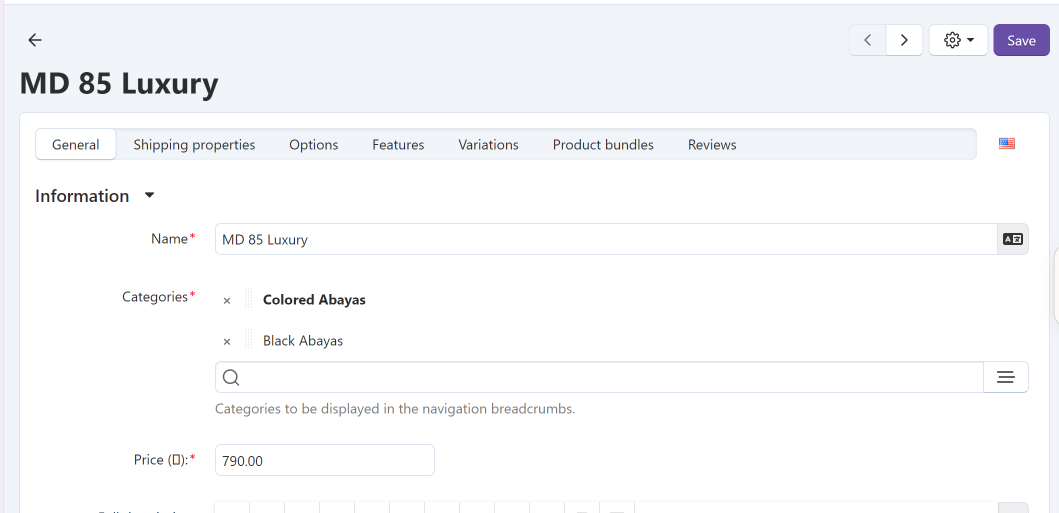
Opening a Product

Step 2: Configure the Shipping Properties.

Update the following fields as needed:

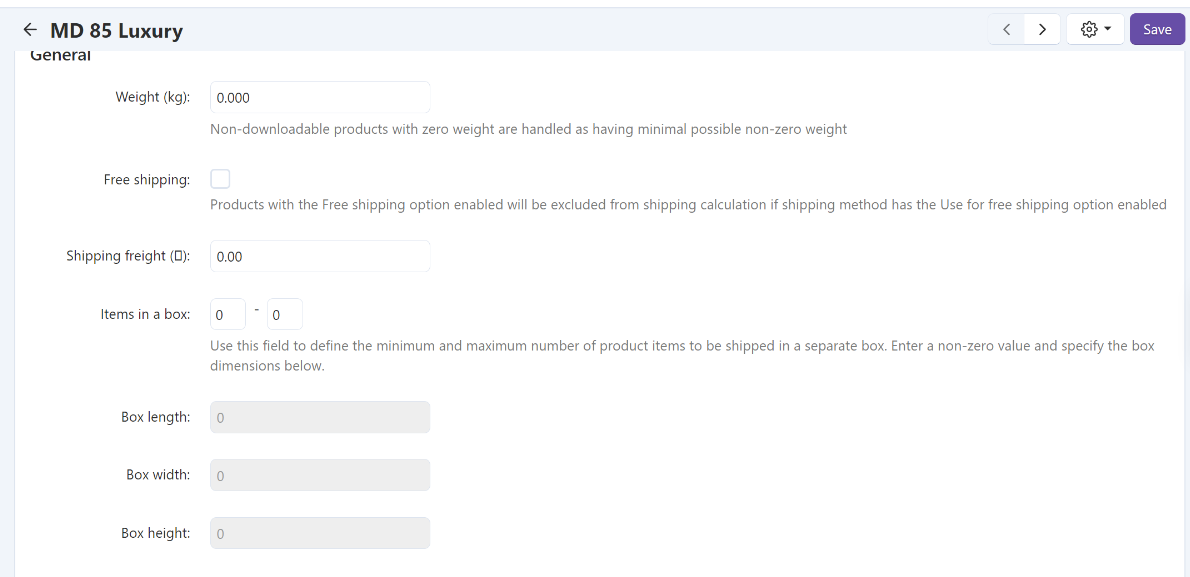
  • Weight (kg): Enter the product's weight in kilograms.
  • Free shipping: Enable this option if the product should be eligible for free shipping.
  • Shipping freight: Enter any additional shipping charges for the product, if applicable.
  • Items in a box: Specify the minimum and maximum number of items shipped in a separate box.
  • Box length, width, and height: Enter the package dimensions when applicable.
Product Shipping Properties

Step 3: Save your changes.

Click Save to apply the updated shipping properties.
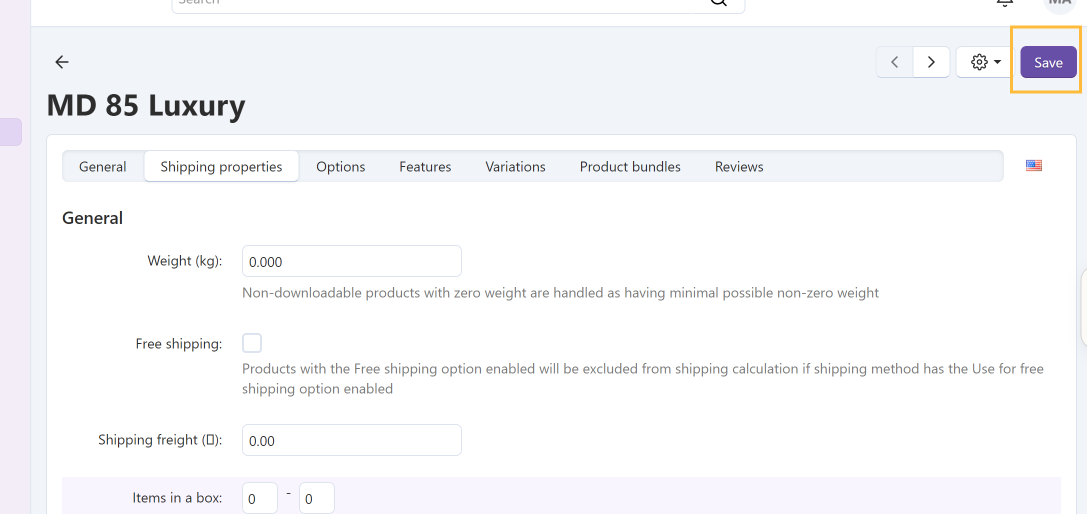
Save Shipping Properties

Note: The Free shipping option excludes the product from shipping cost calculations only when the applicable shipping method is configured to support it.

2. Managing Shipping Methods

Step 1: Open Shipping Methods.

Navigate to Shipping methods in the Vendor Panel.
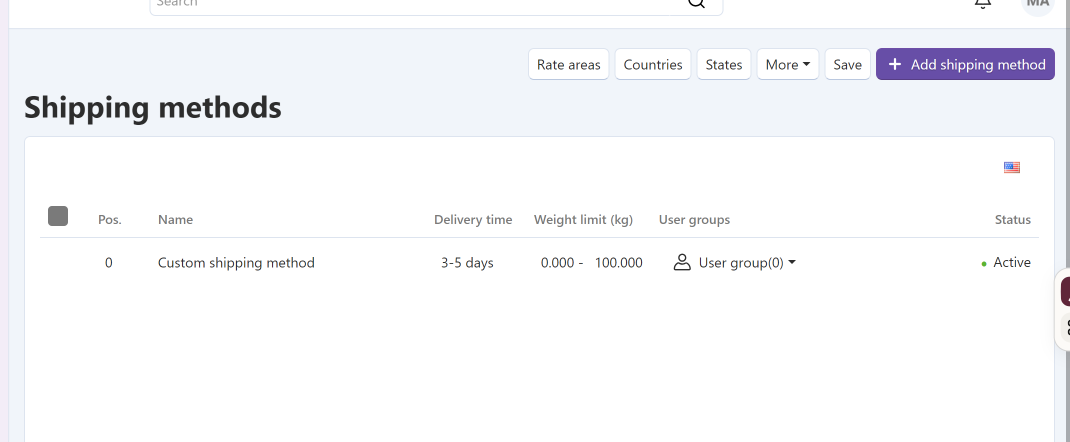
Shipping Methods List

Step 2: Review the available shipping methods.

Check the following information in the shipping methods list:
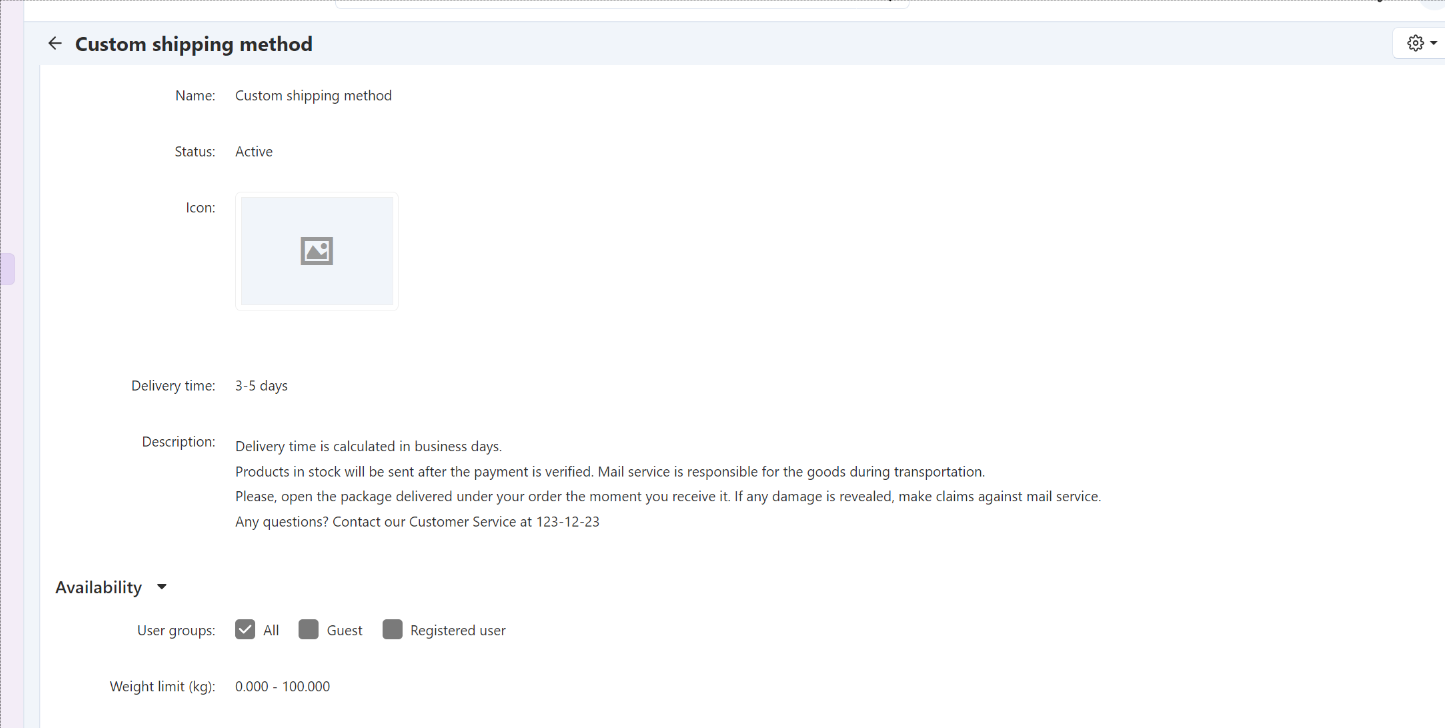
  • Name: The shipping method's name.
  • Delivery time: The estimated delivery period shown to customers.
  • Weight limit (kg): The minimum and maximum order weight accepted by the method.
  • User groups: The customer groups eligible to use the method.
  • Status: Indicates whether the shipping method is active or disabled.
Shipping Methods List Details

Step 3: Review Shipping Time and Rates.

Open the Shipping time and rates tab to review the shipping rates and delivery times configured for different rate areas.
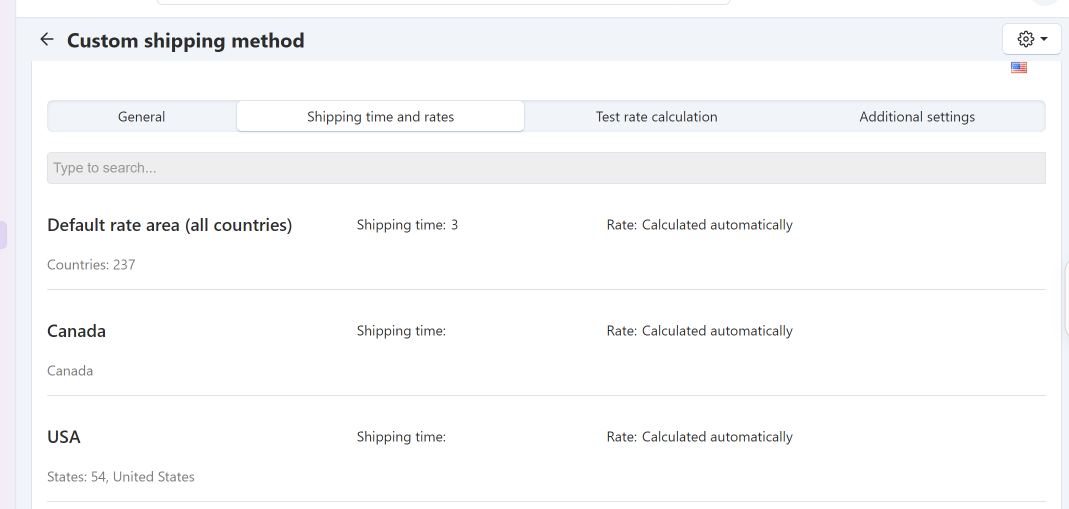
  • Rate area: The destination area covered by the shipping rate.
  • Shipping time: The estimated delivery time.
  • Rate: The shipping cost, which may be calculated automatically by the selected shipping service or configured manually.
Shipping Time and Rates Tab

Step 4: Test Rate Calculation.

Open the Test rate calculation tab to check the estimated shipping cost.
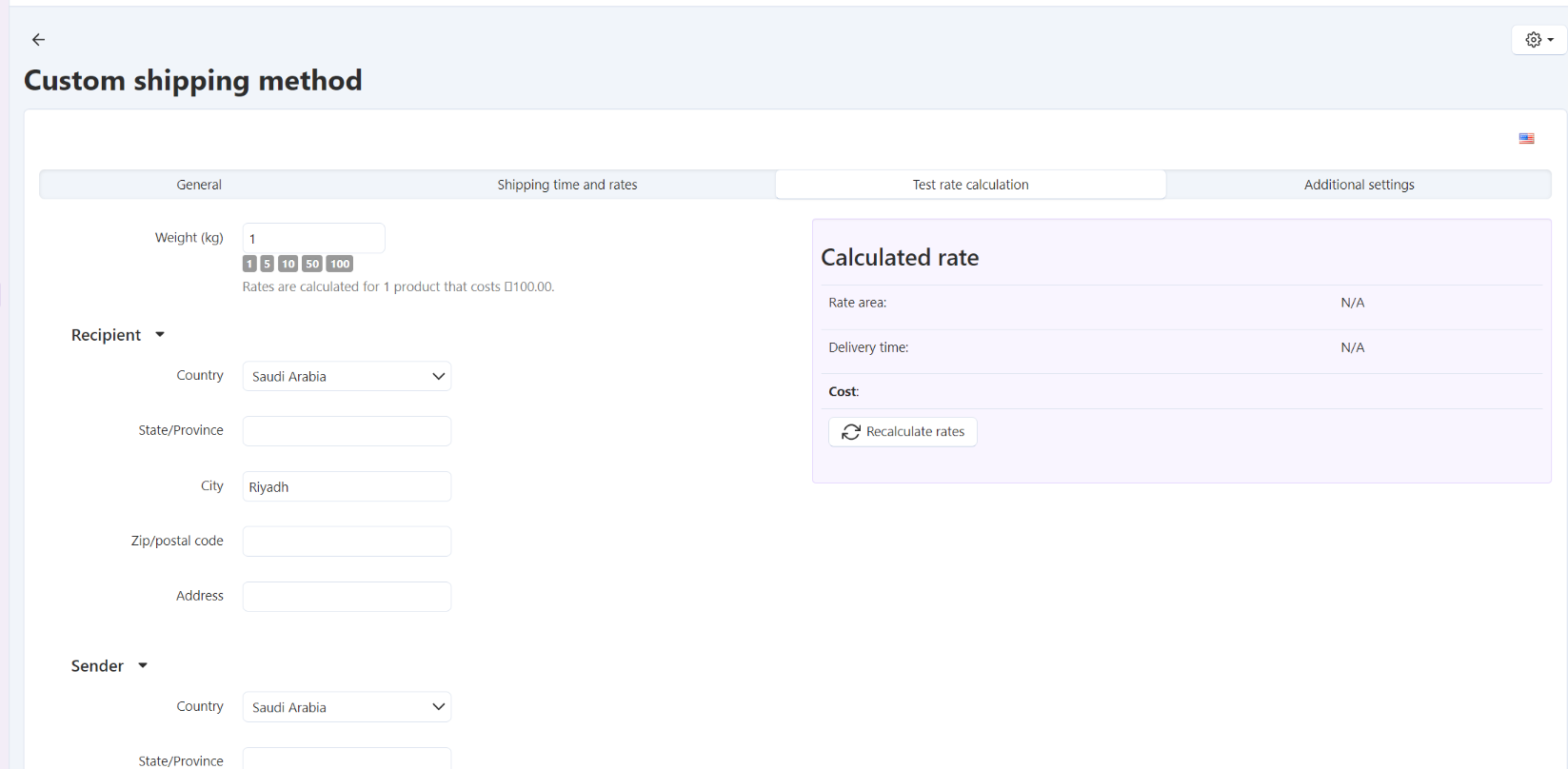
  1. Enter the order weight in kilograms.
  2. Provide the recipient's destination details, such as country, city, and postal code.
  3. Review the sender's address if required.
  4. Click Recalculate rates to view the calculated shipping cost and delivery time, when available.
Test Rate Calculation Tab

Note: Shipping rates and delivery times depend on the shipping method configuration, destination, and selected shipping service. Your ability to add or edit shipping methods and their settings depends on your permissions and store configuration.