
Product Options & Features
Collections
|
Product Options, Features, Variations & Image MeasurementsThis guide explains how to manage product options, define product features, create product variations, and upload images using the dimensions required by the store's theme. 1. Managing Product OptionsProduct options allow customers to select from available choices when purchasing a product. Example: AbayaAn abaya may have the following options:
Step 1: Open an existing product or select Add Product.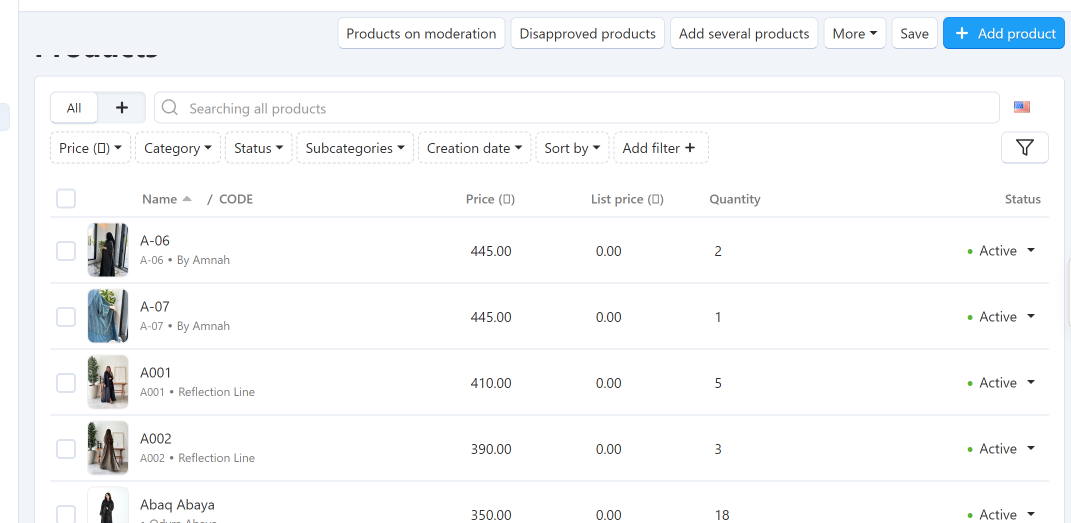
Step 2: Locate the Options section.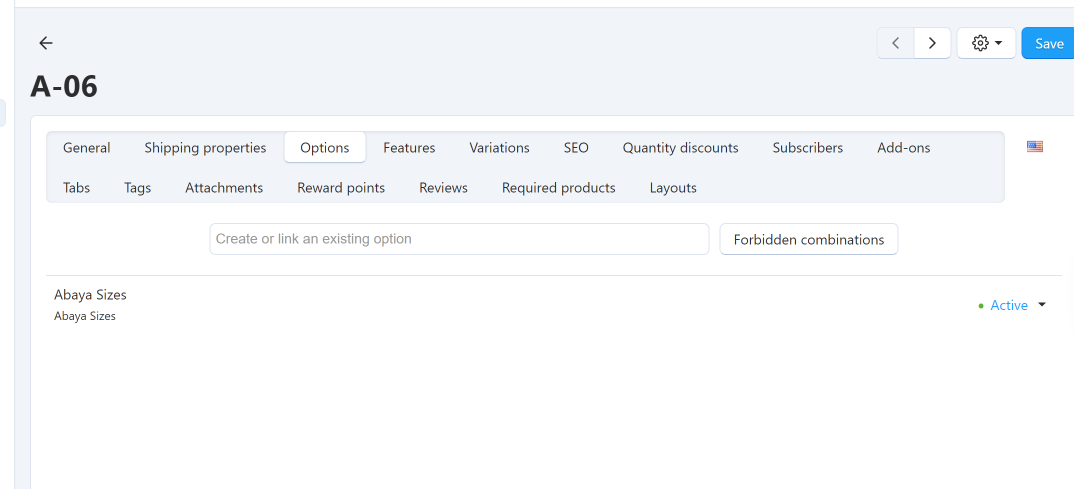
Step 3: Add or configure the available options and their values.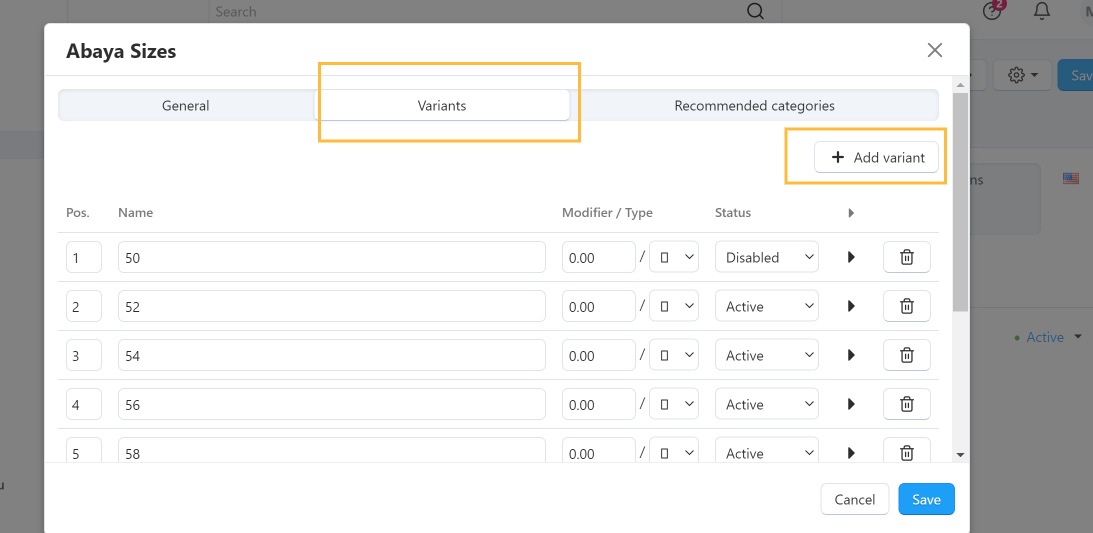
Step 4: Save the changes and verify the options on the storefront.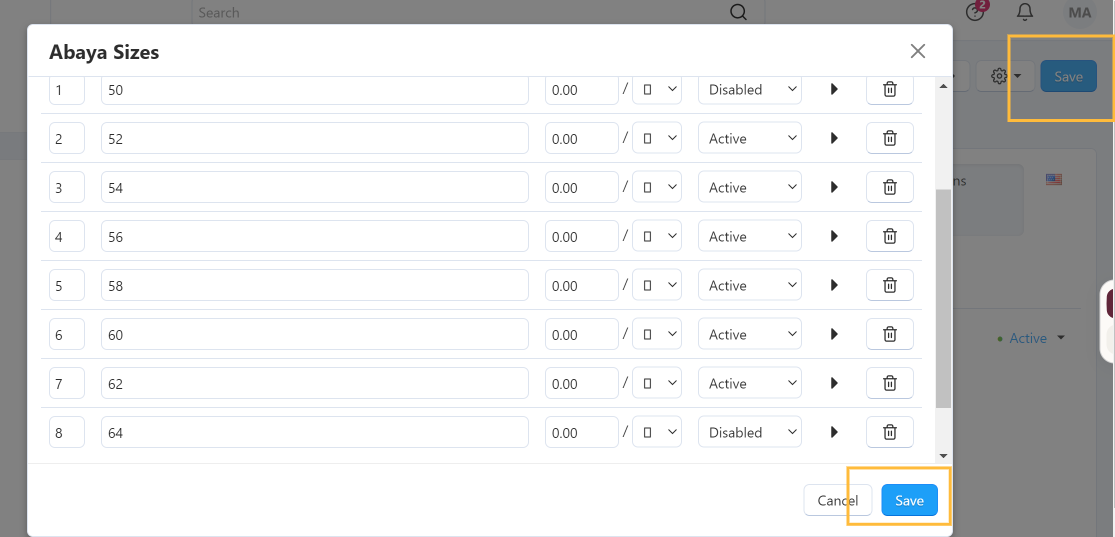
2. Managing Product FeaturesProduct features describe product attributes such as size, color, material, and other specifications. They can be created and configured before being assigned to products. A. Creating a Product FeatureStep 1: Open the Features section in the Administration Panel, then click Add feature.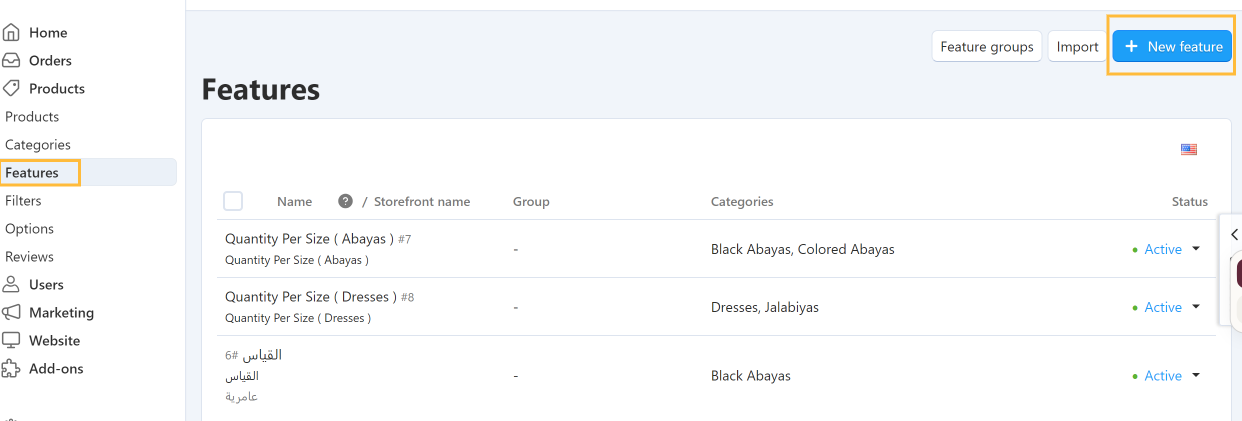
Step 2: Under the General tab, configure the main fields:
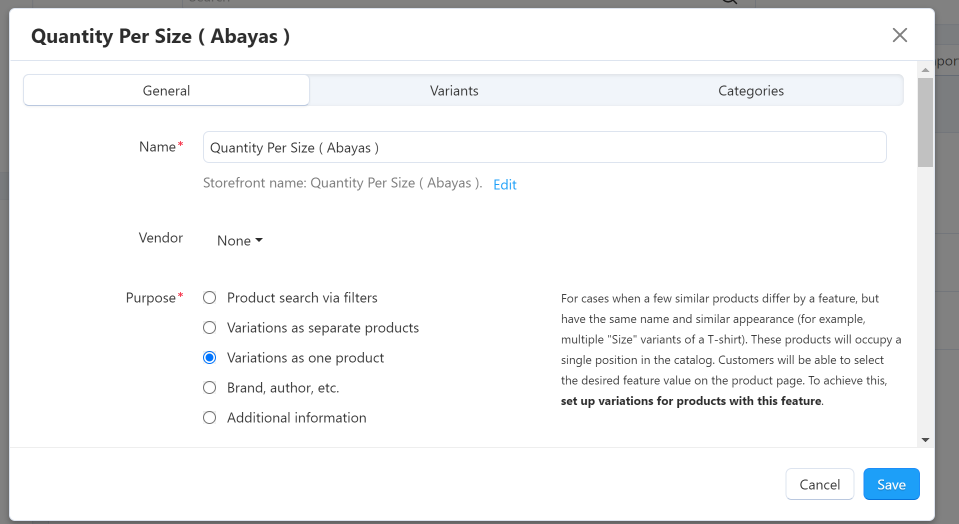
img src="https://bazaralward.com/images/promo/3/feature3.png" alt="General Tab with Main Feature Fields"> Step 3: Open the Variants tab, if the feature uses predefined values.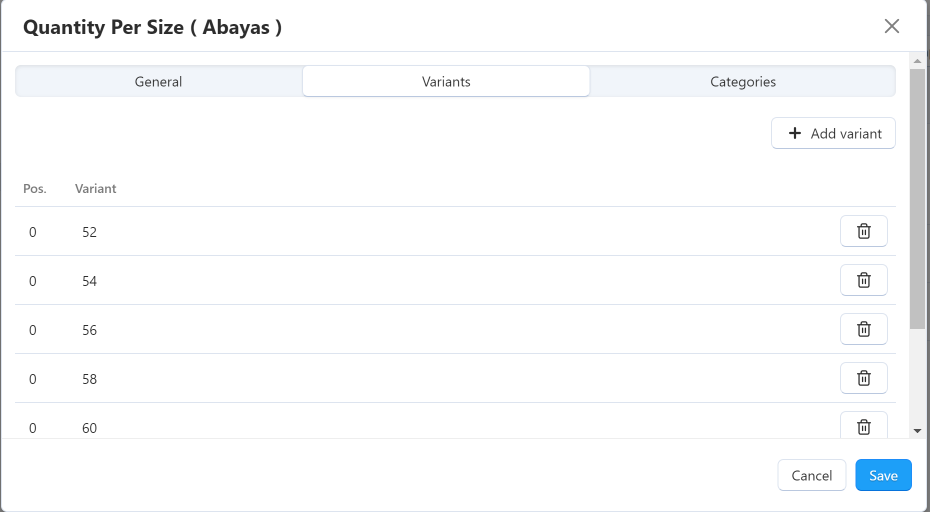
Step 4: Add the available values, such as Cotton, Linen, and Polyester for a Material feature. Then Save the feature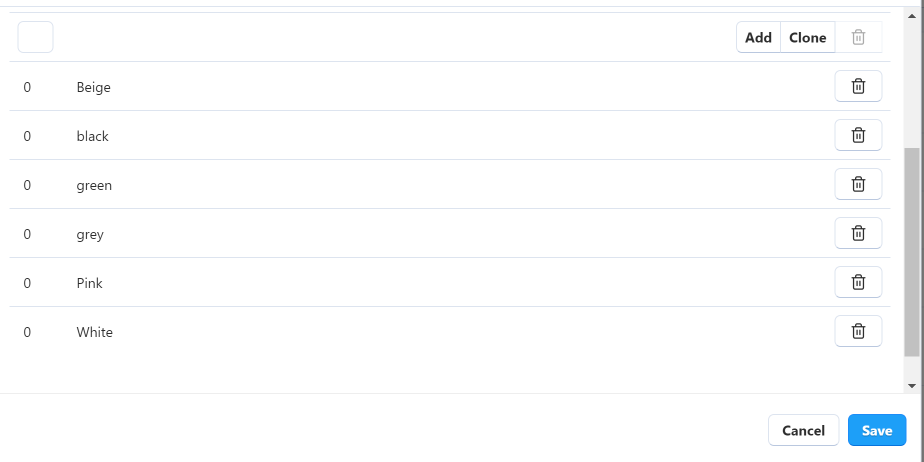
B. Assigning a Feature to a ProductAfter creating the feature, you can assign it to a product. Step 1: Navigate to Products in the Vendor Panel.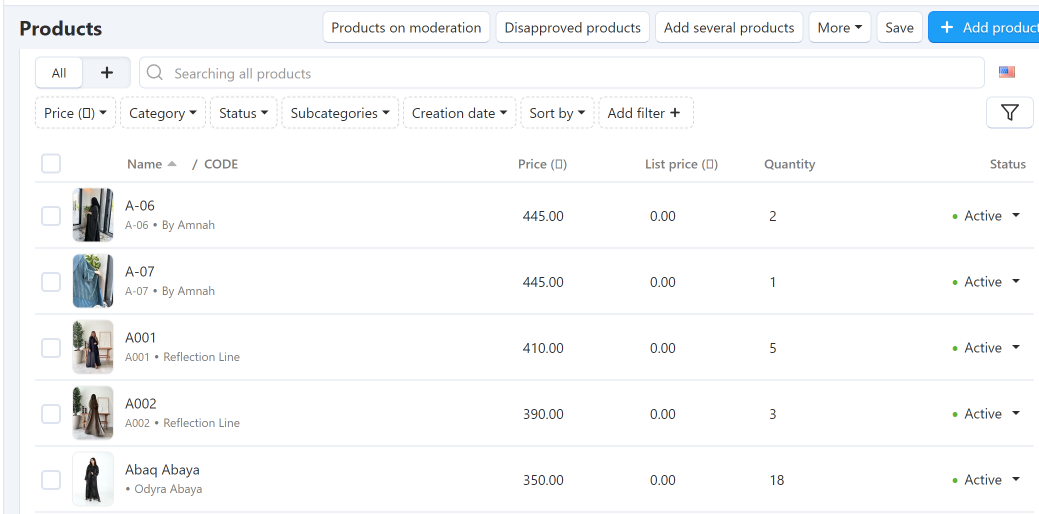
Step 2: Open an existing product or click Add Product.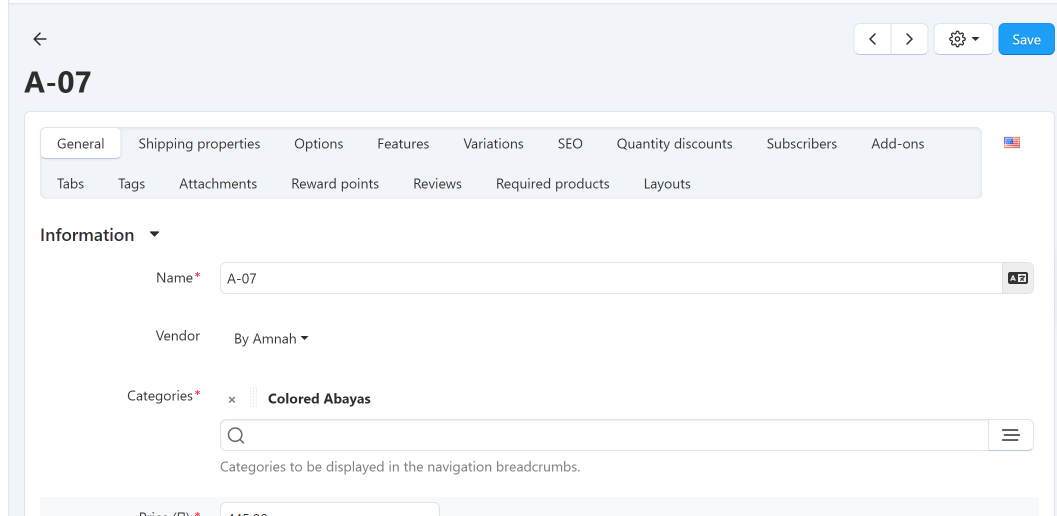
Step 3: Open the Features tab.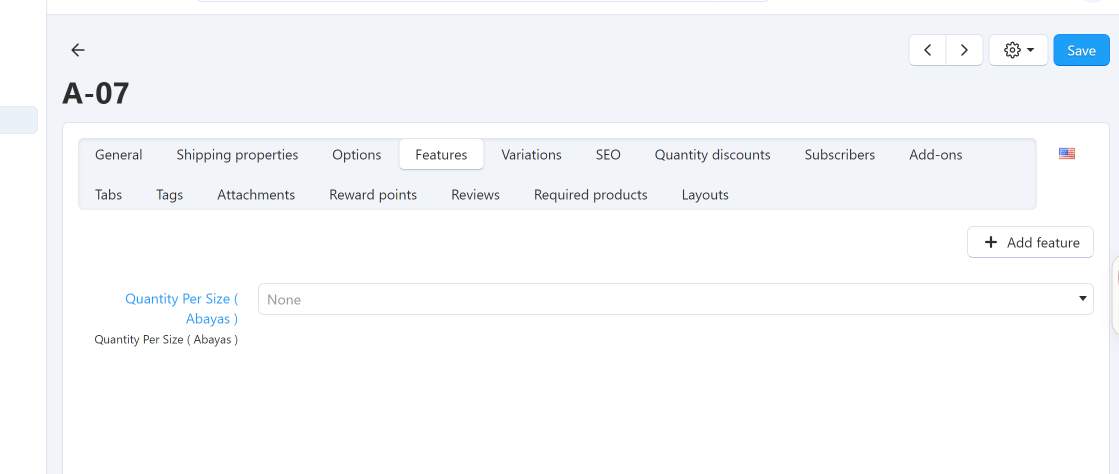
Step 4: Find the required feature and select the appropriate value.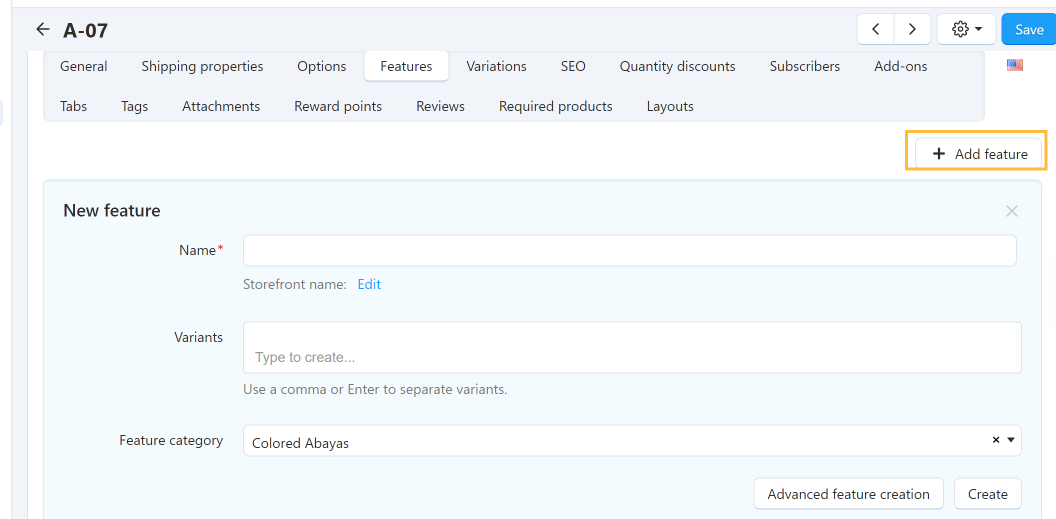
Step 5: Save the product and verify the feature information on the storefront.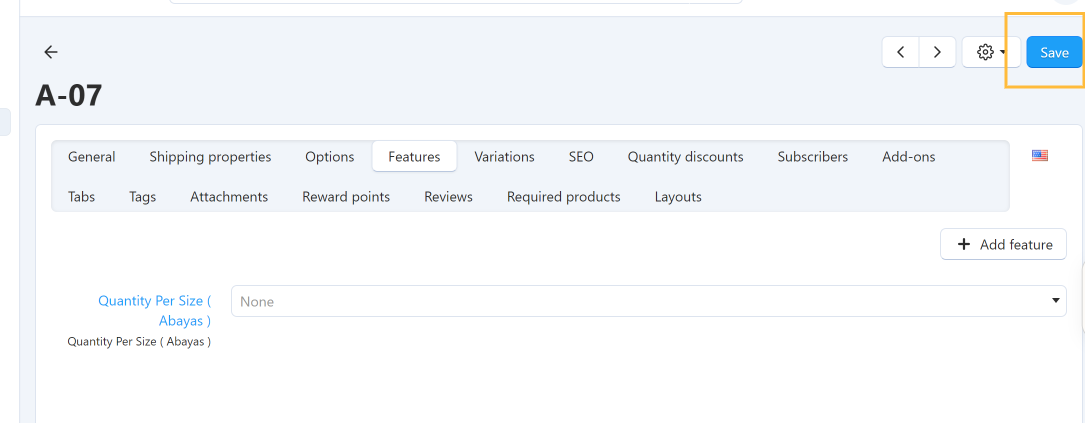
Example:For an abaya, you might configure the following features:
Important Notes:
3. Managing Product VariationsProduct variations are used to group similar products that differ by features such as size or color. This allows customers to switch between available product variations on the product page. Example: AbayaAn abaya is available in two colors, Black and Beige, and three sizes, Small, Medium, and Large. These combinations can be created as product variations, depending on the store configuration. C. Creating New VariationsStep 1: Navigate to Products in the Vendor Panel.
Step 2: Open the product you want to create variations for.
Step 3: Under Create new products, select the required features, such as Color or Size.Variations are based on product features, so make sure the required features have already been created and configured with the appropriate Purpose. 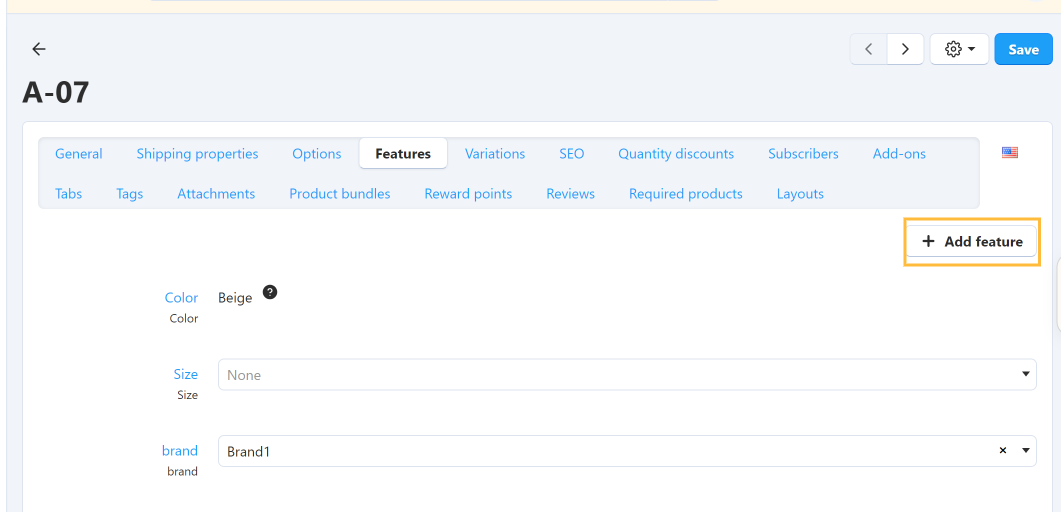
Step 4: Go to the Variations tab.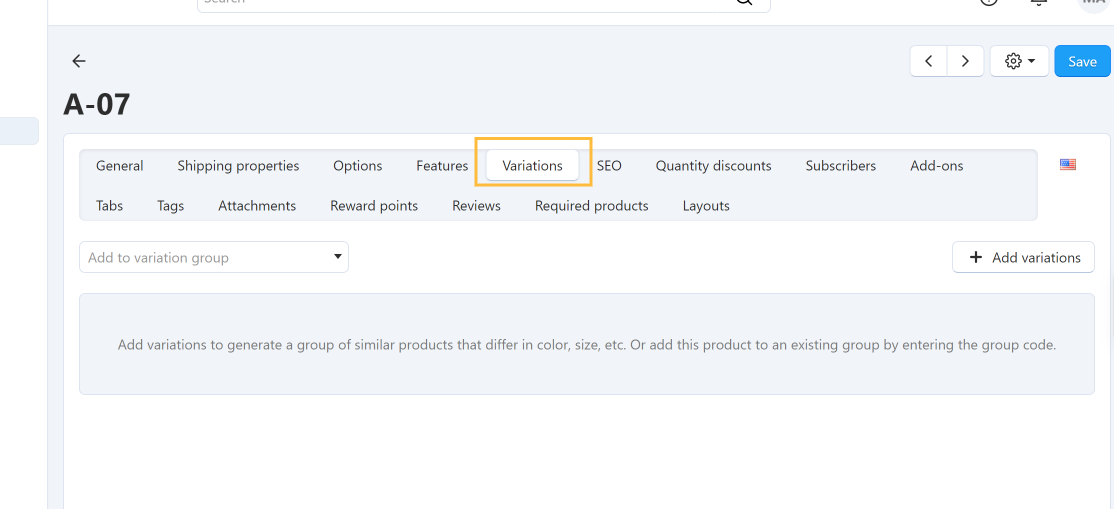
Step 5: Click Add variations.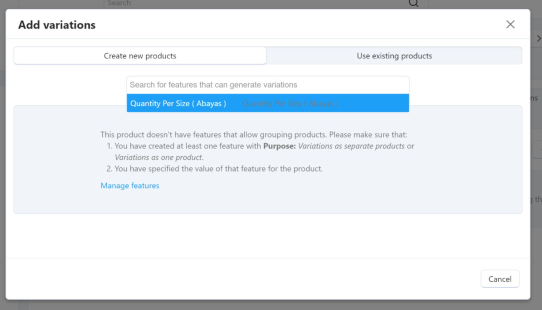
Step 6: Select the available feature values, such as Black and Beige for Color, or Small, Medium, and Large for Size.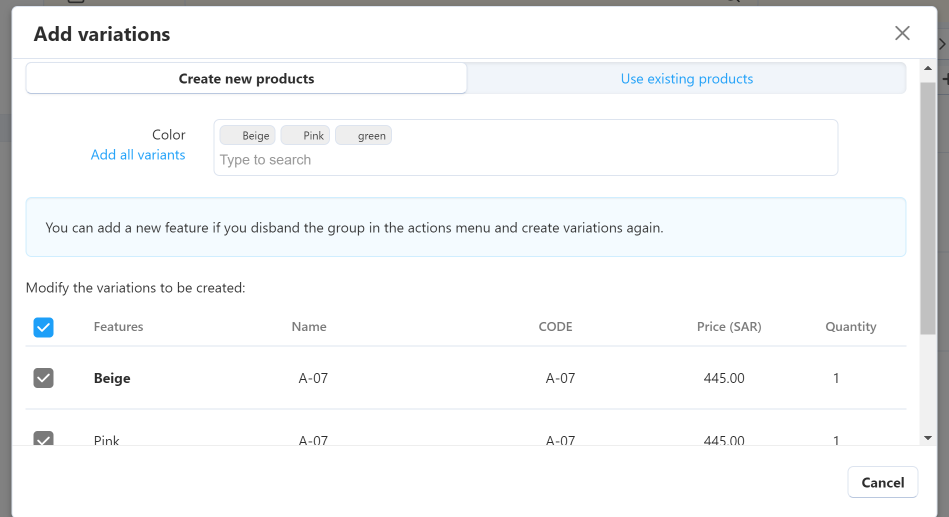
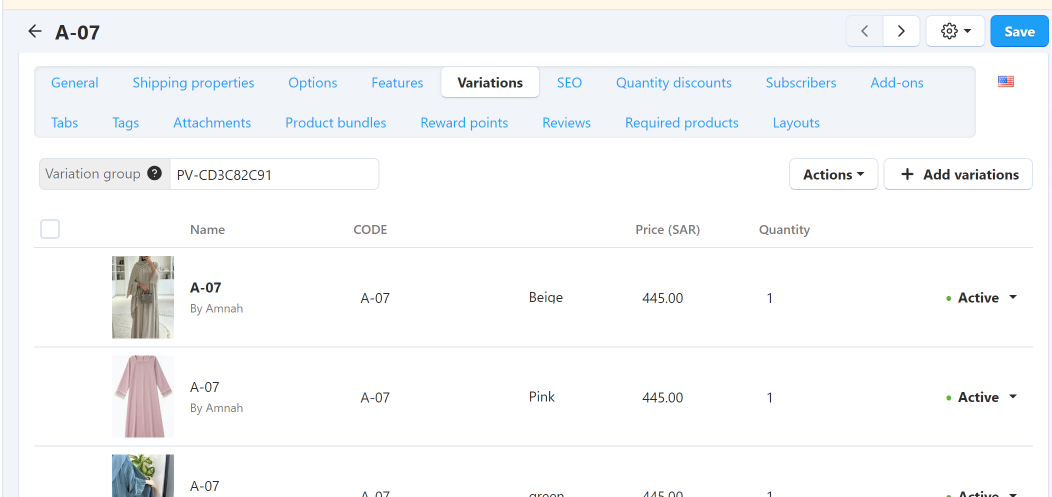
D. Adding Existing Products to a Variation GroupIf the products already exist in the store: Step 1: Open one of the products and navigate to the Variations tab.
Step 2: Click Add variations.
Step 3: Select Use existing products.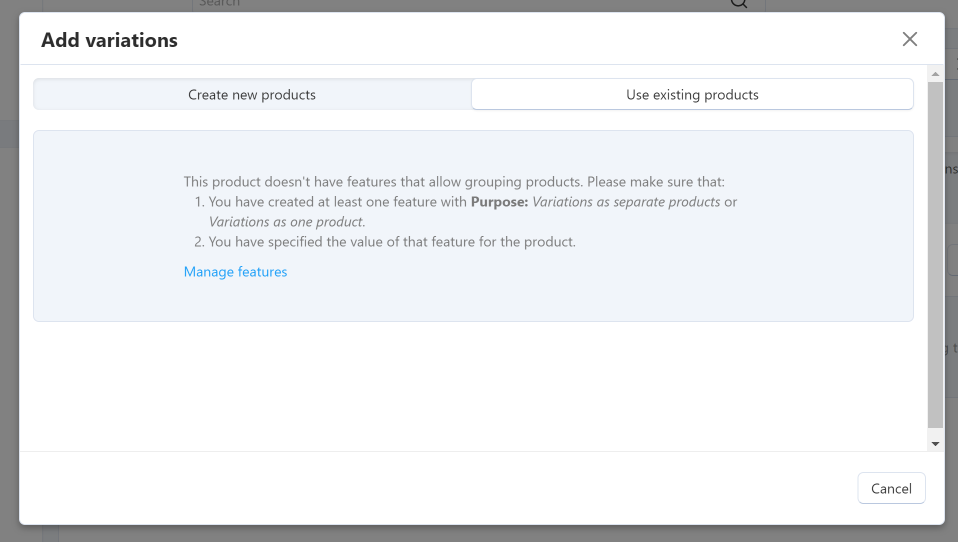
Step 4: Choose the eligible products you want to group together.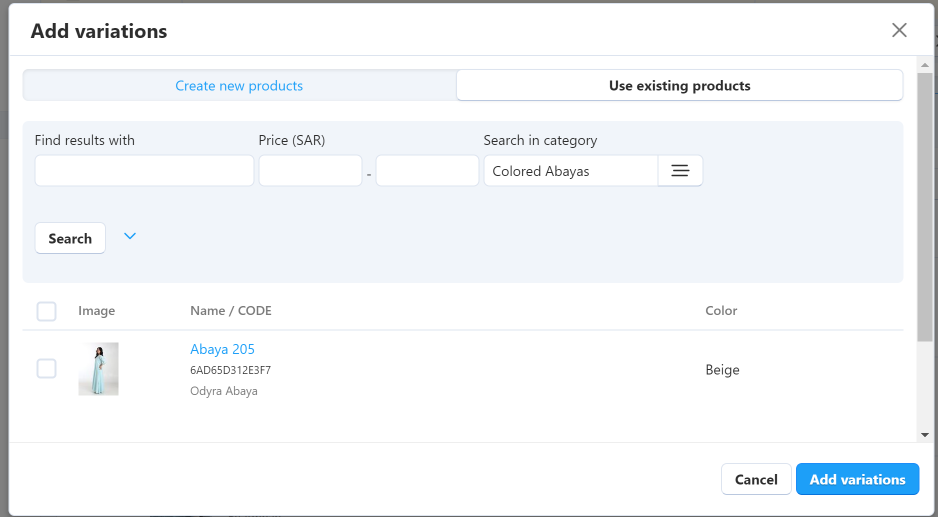
Step 5: Click Add variations to complete the process.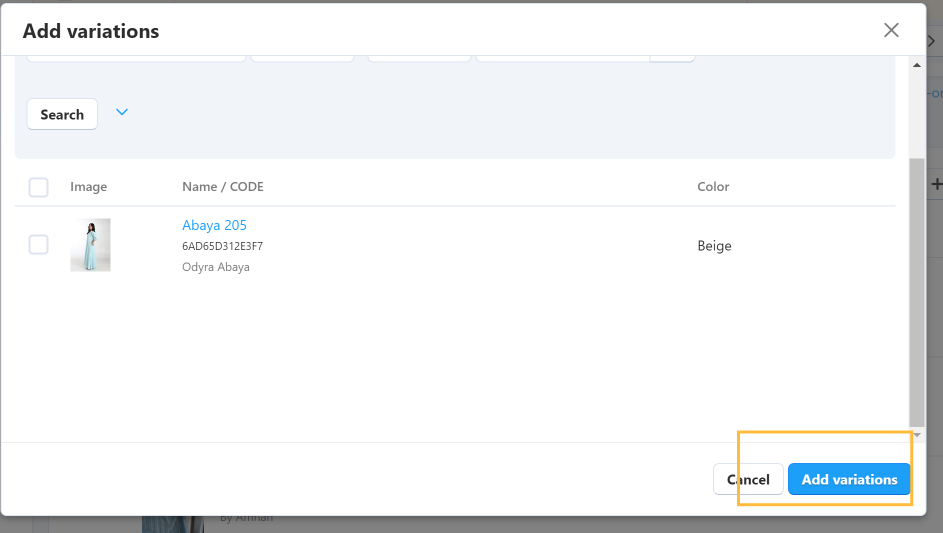
Important Notes:
4. Product Image MeasurementsUpload product images using the dimensions specified for the store's theme to ensure consistent display across the storefront. Required image dimensions:
Step 1: Open the product edit page and navigate to the images section.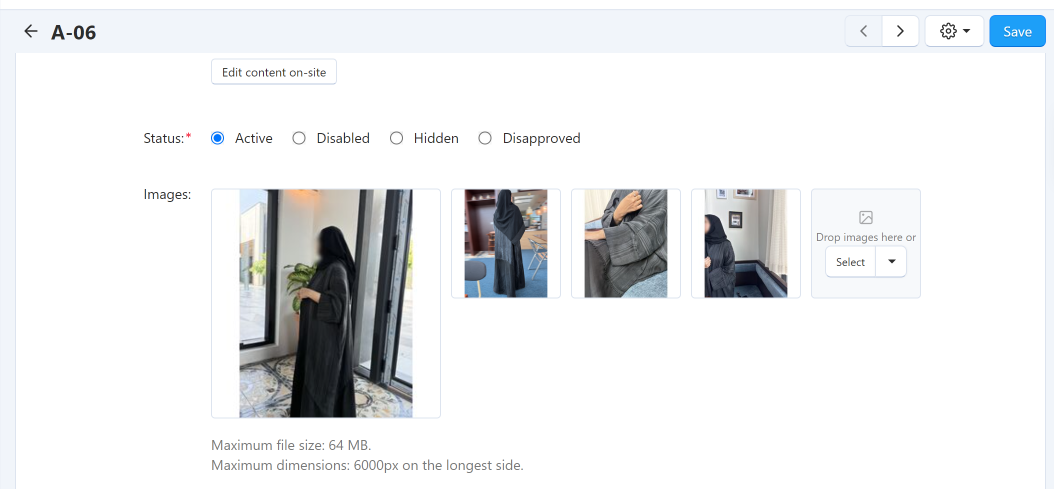
Step 2: Upload images that meet the required dimensions.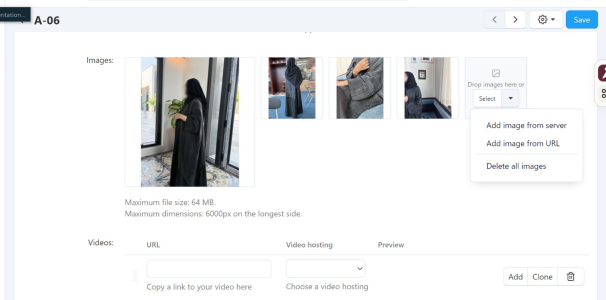
Step 3: Verify the image display on the storefront to ensure proper formatting.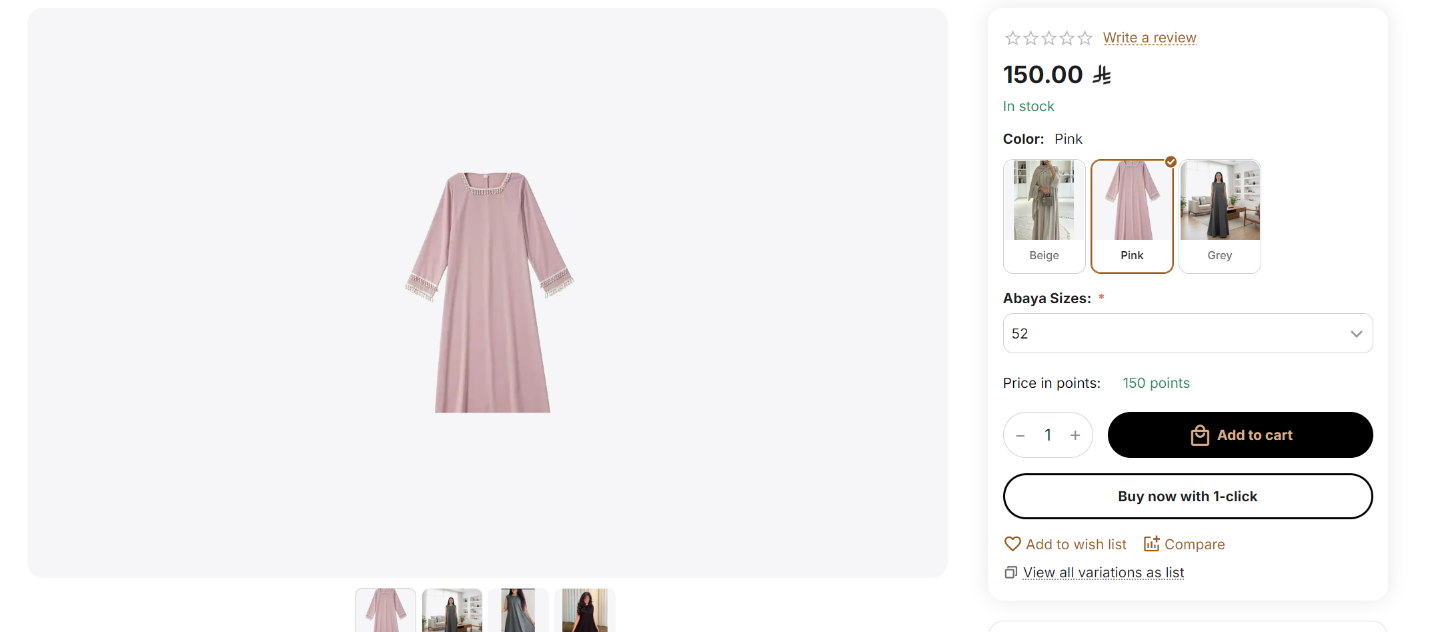
Tip: Using images with the correct dimensions ensures your products display consistently and professionally across all devices. |


