
Product Price & Inventory
Collections
|
Pricing & InventoryLearn how to set and update product prices, manage inventory levels, and control product availability on Bazar Alward. 1. Set & Update Product PriceSet competitive prices for your products and update them as needed to stay competitive in the market. Step 1: Open the product edit page from your Vendor Panel.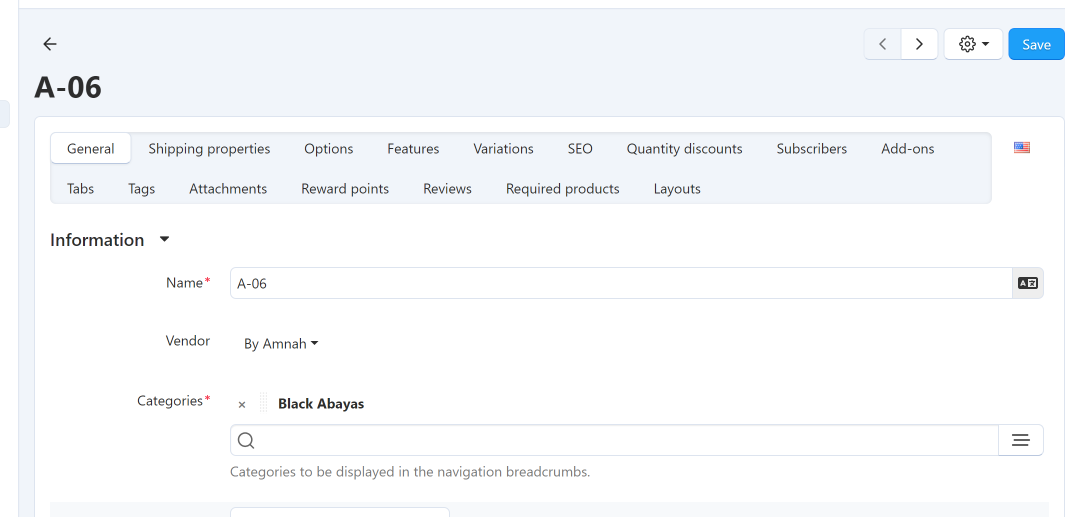
Step 2: Locate the "Price" field and enter the product price.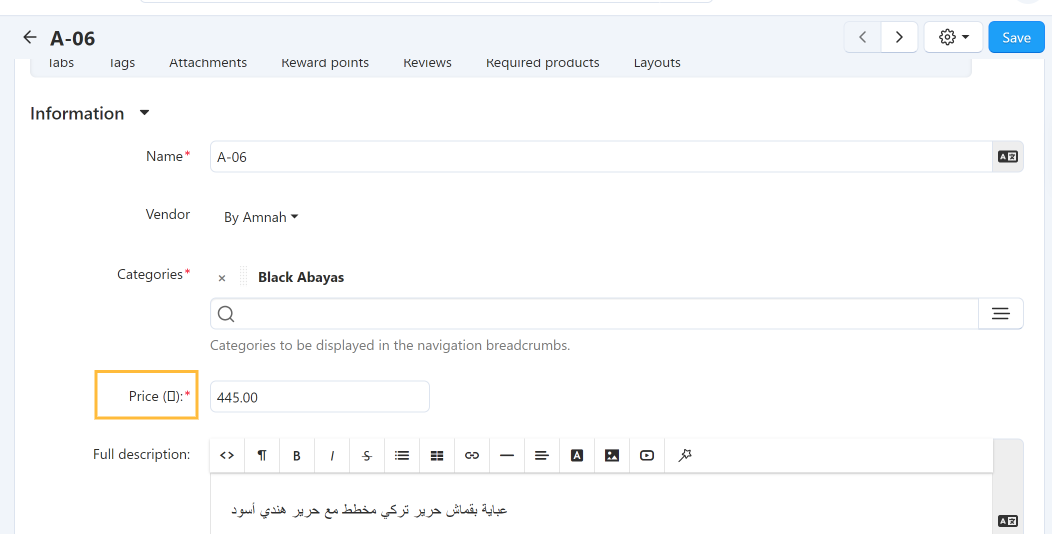
Step 3: If applicable, set a list price (original price) and a sale price (discounted price).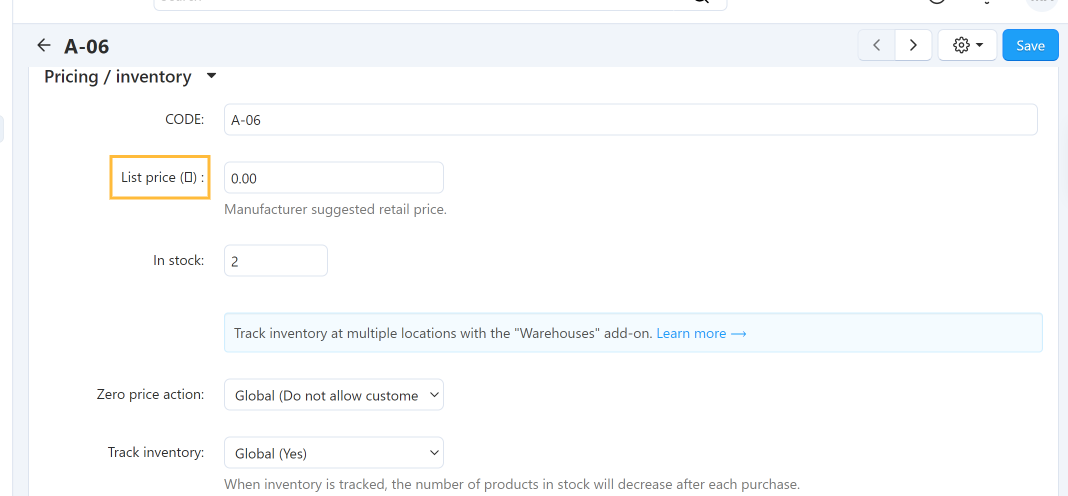
Step 4: Save the changes to apply the new pricing.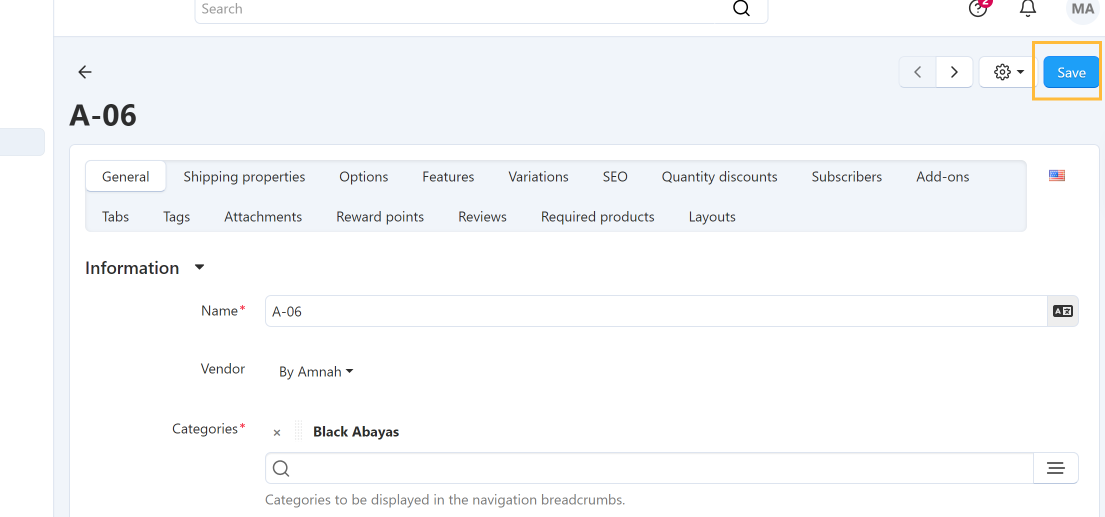
Tip: You can also update prices directly from the products list using quick edit options for faster bulk updates. 2. Set Product Quantity / InventoryManage your stock levels to ensure accurate inventory tracking and prevent overselling. Step 1: Open the product edit page and navigate to the inventory section.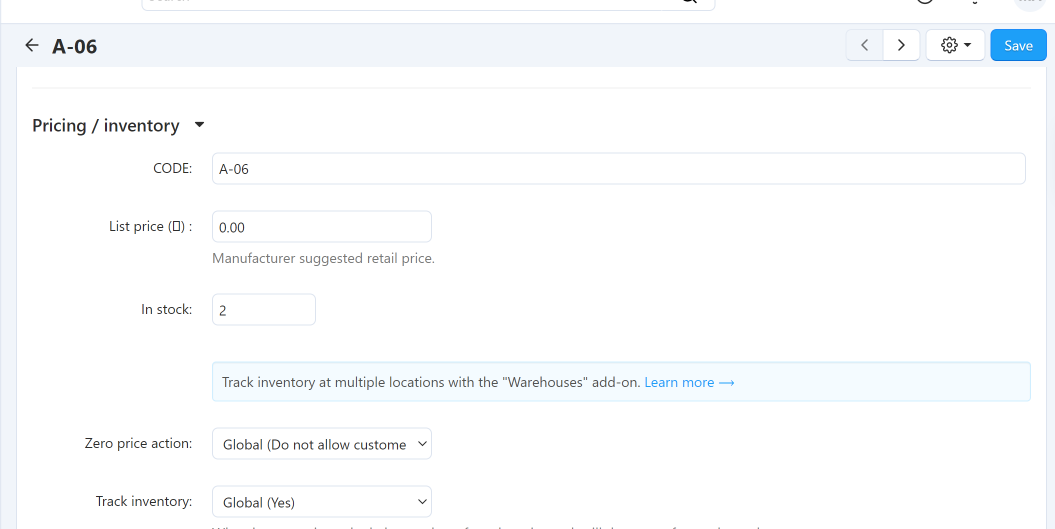
Step 2: Enter the available quantity in the "Amount" or "Quantity" field.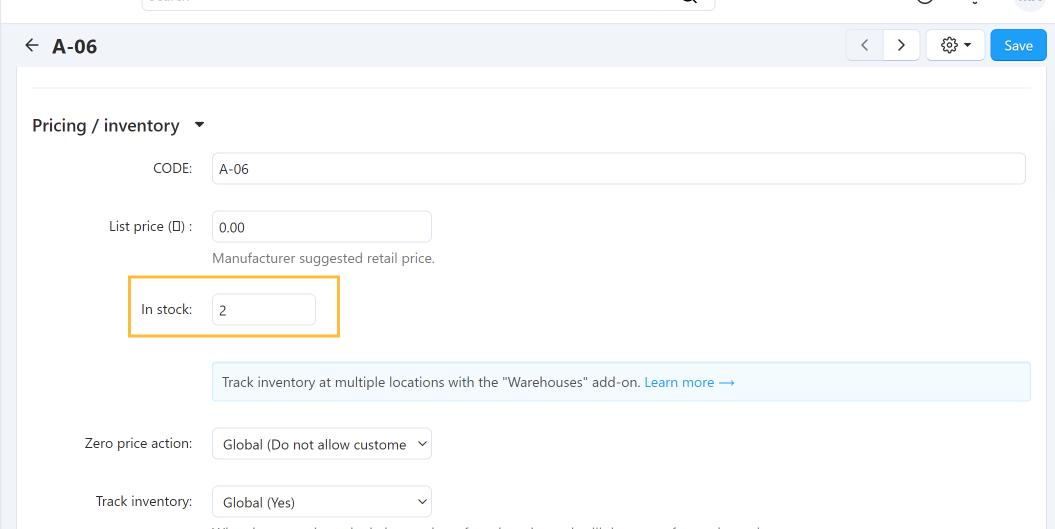
Step 3: Set the minimum and maximum quantity if required for your store's configuration.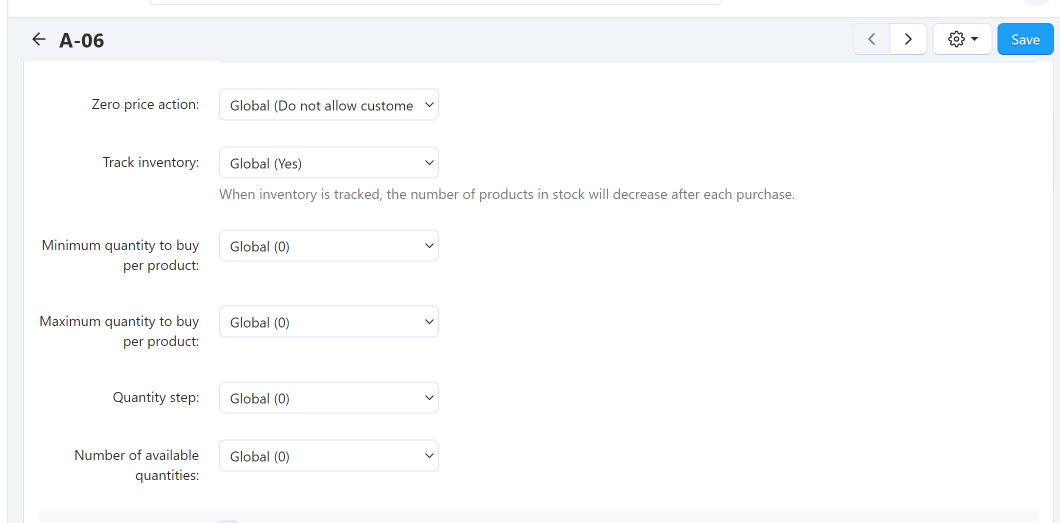
Step 4: Save the changes to update your inventory levels.
Important: Keep your inventory updated regularly to avoid selling out-of-stock items and disappointing customers. 3. Manage Product Availability / Out-of-Stock ProductsControl when products are available for purchase and handle out-of-stock situations effectively. Step 1: In the product edit page, locate the product status or availability settings.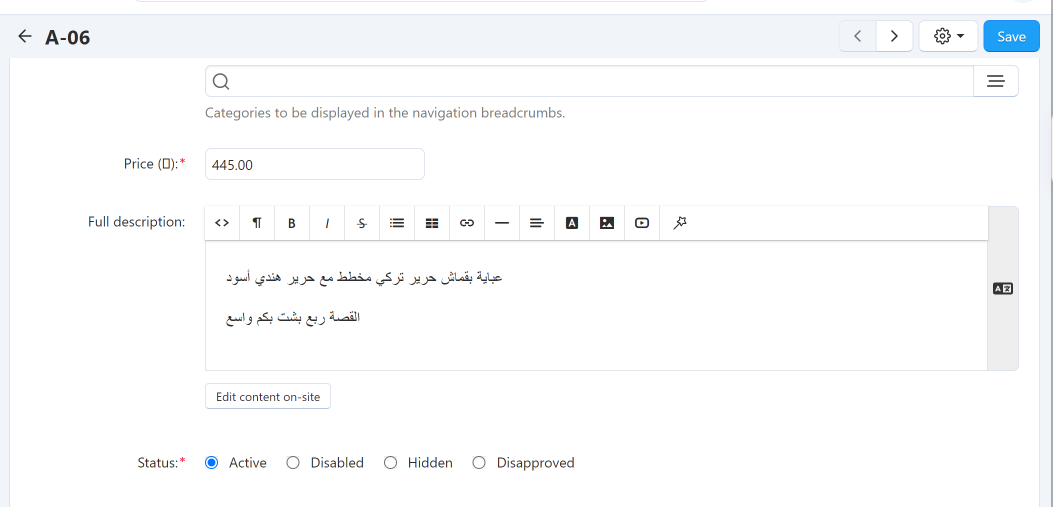
Step 2: Set the status to "Active" to make the product available, or "Inactive" to hide it from the storefront.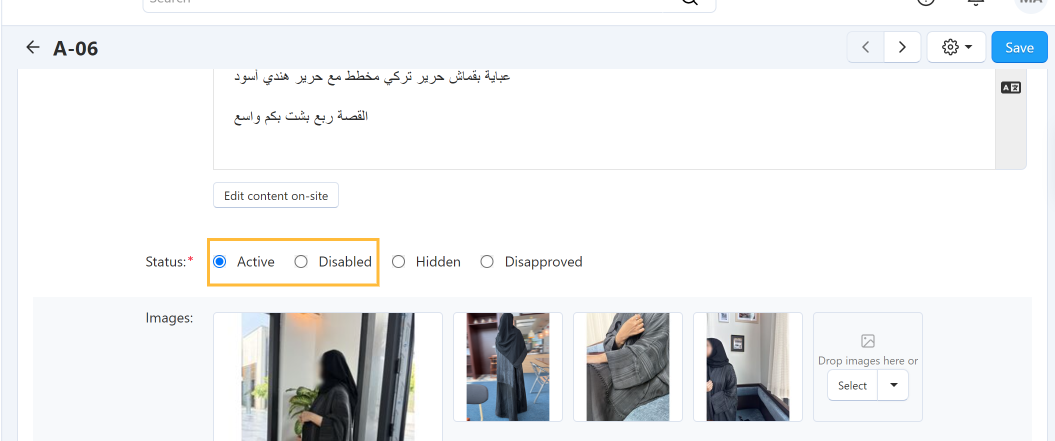
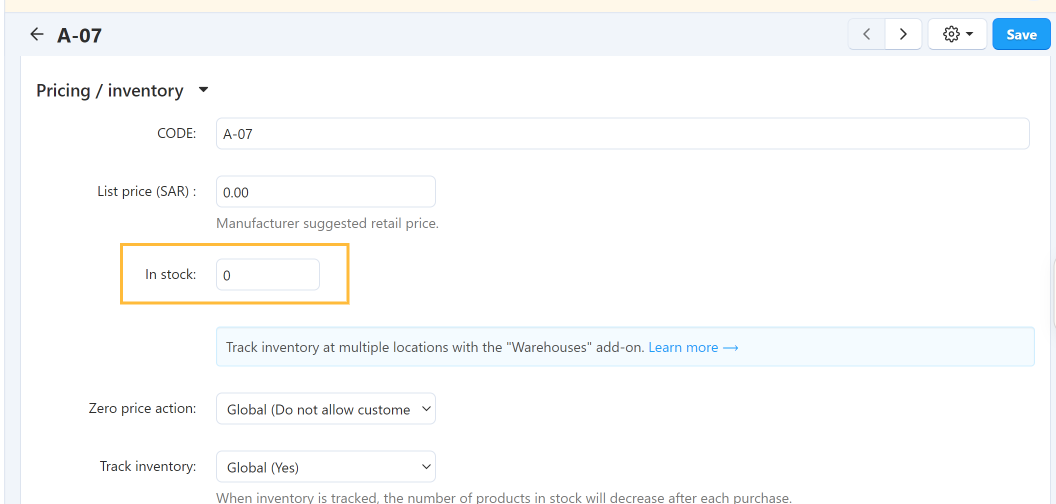
Step 3: For out-of-stock products, you can choose to automatically hide them or show them with an "Out of Stock" label.Note: When the In Stock quantity is set to **0**, the product displays an "Out of Stock" label on the storefront. 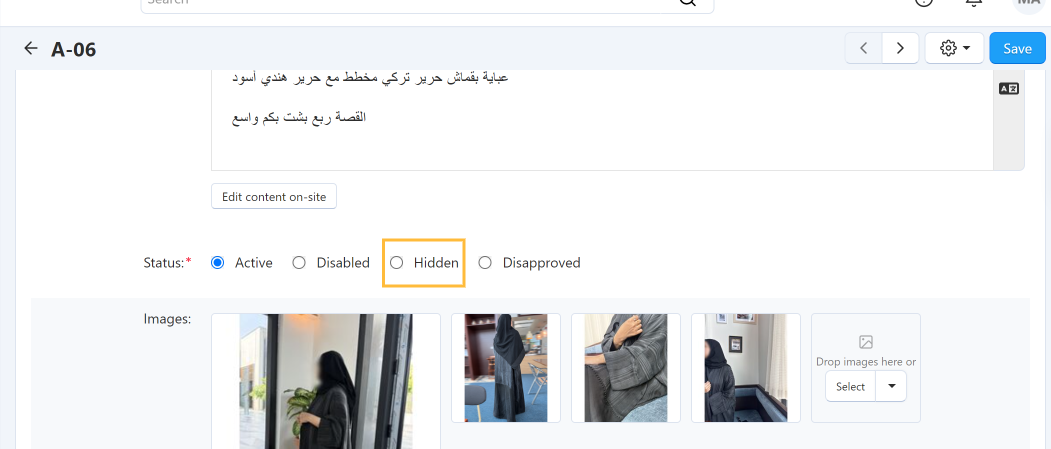
Step 4: Save your changes to apply the availability settings.
Tip: Consider setting up low stock notifications to alert you when inventory levels are running low. |


