
Getting Started & Account
Collections
|
Getting Started & Vendor PanelWelcome to the Bazar Alward Vendor Guide. This section will help you create your vendor account, configure the Vendor Panel, and manage your basic store information. 1. Create a Vendor AccountTo start selling on Bazar Alward, you first need to create a vendor account. Step 1: Open the Bazar Alward website and go to the Vendor Registration page.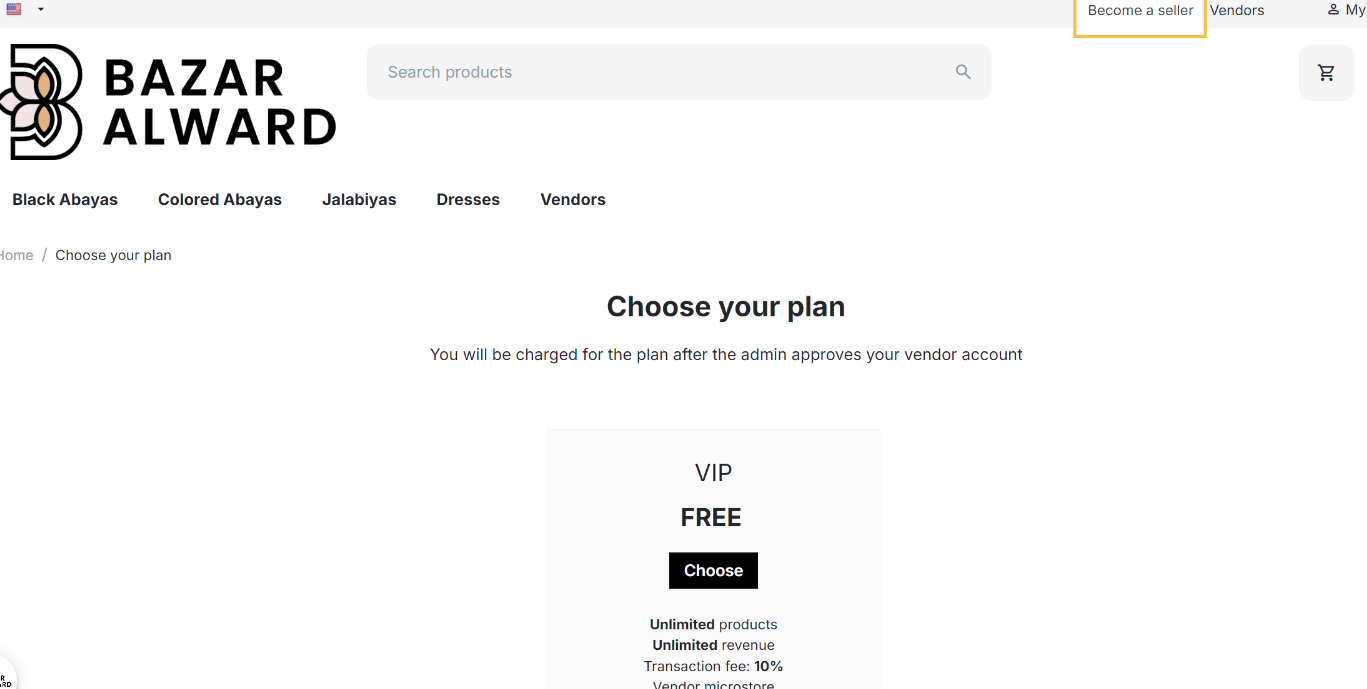
Step 2: Enter the required account information, such as your name, email address, and password.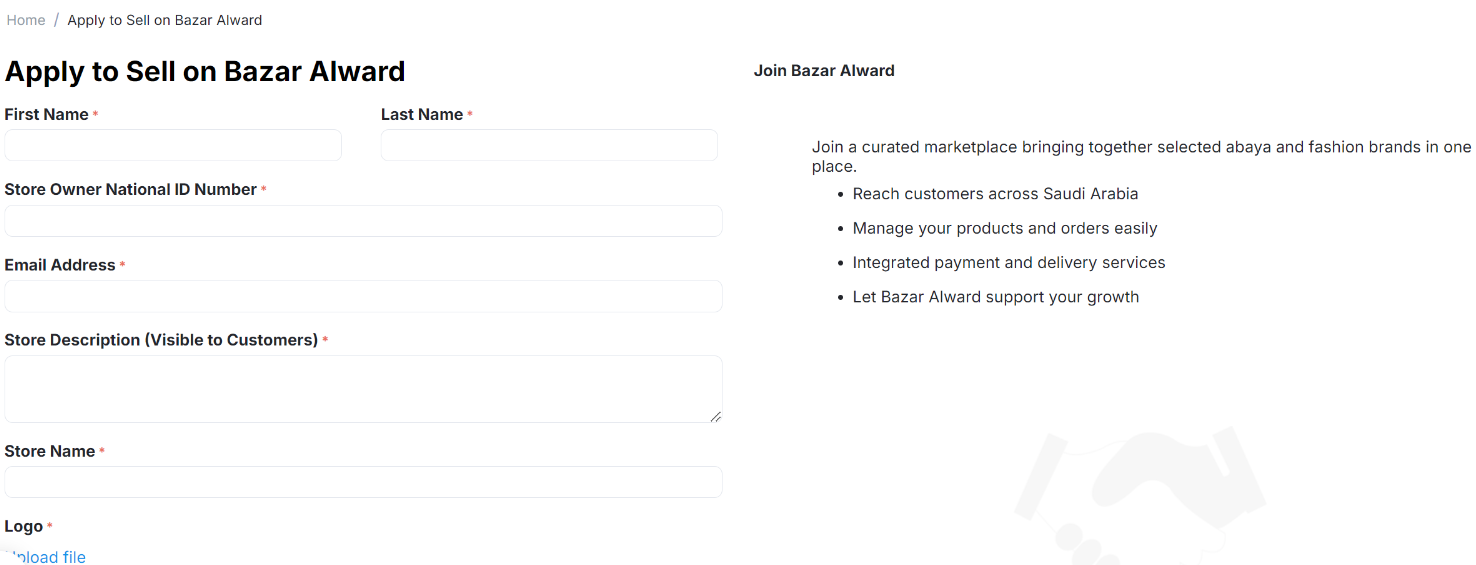
Step 3: Enter your store/vendor information and complete the required registration details.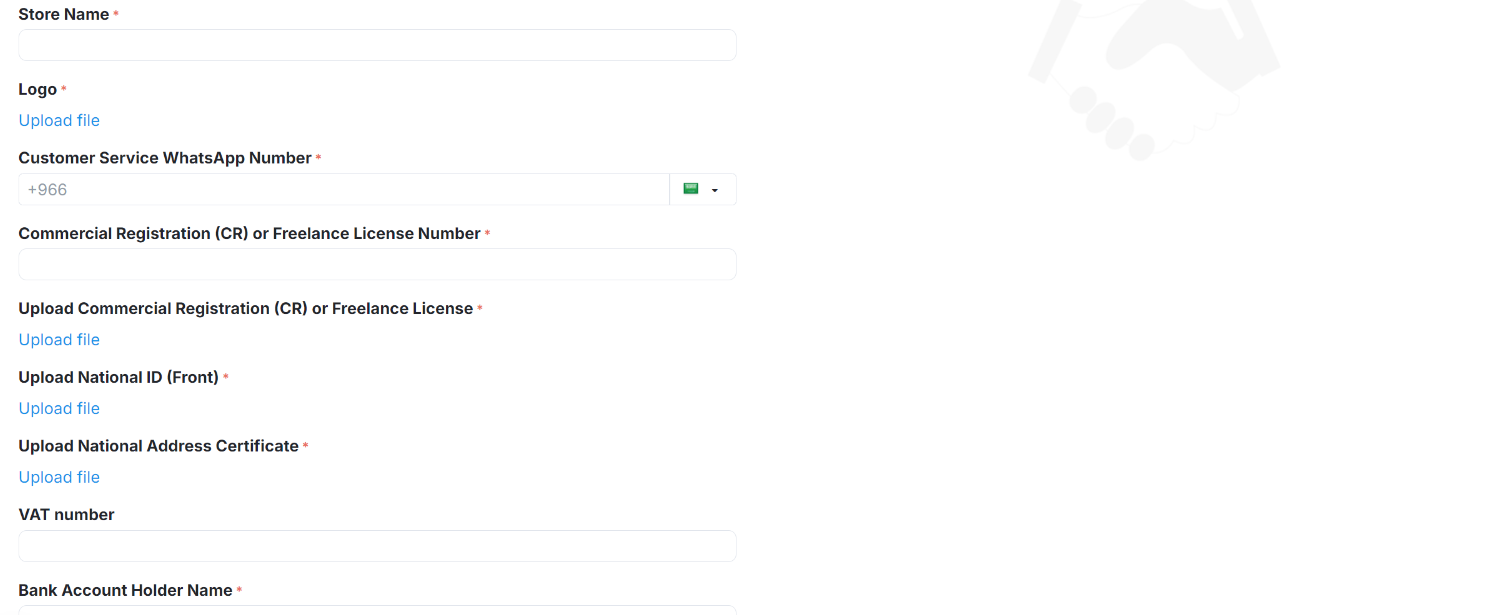
Step 4: Review the information you entered and submit the registration form.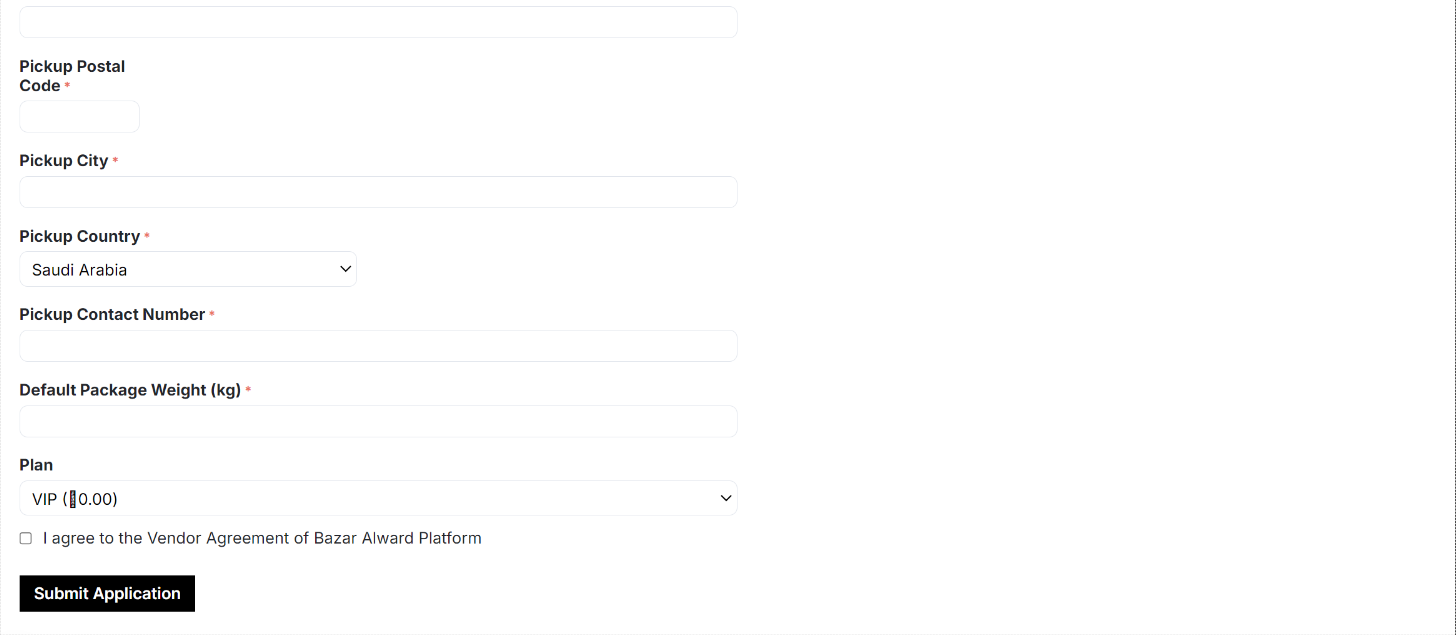
Note: After submitting your registration, your account may need to be reviewed and approved before you can start managing your products. 2. Vendor Panel ConfiguratorThe Vendor panel configurator lets you control which tabs and fields are displayed in the Vendor Panel when adding or editing a product. Only the tabs and fields that are checked will be visible to vendors. Step 1: From Addons Tab, go to Downloaded Addons.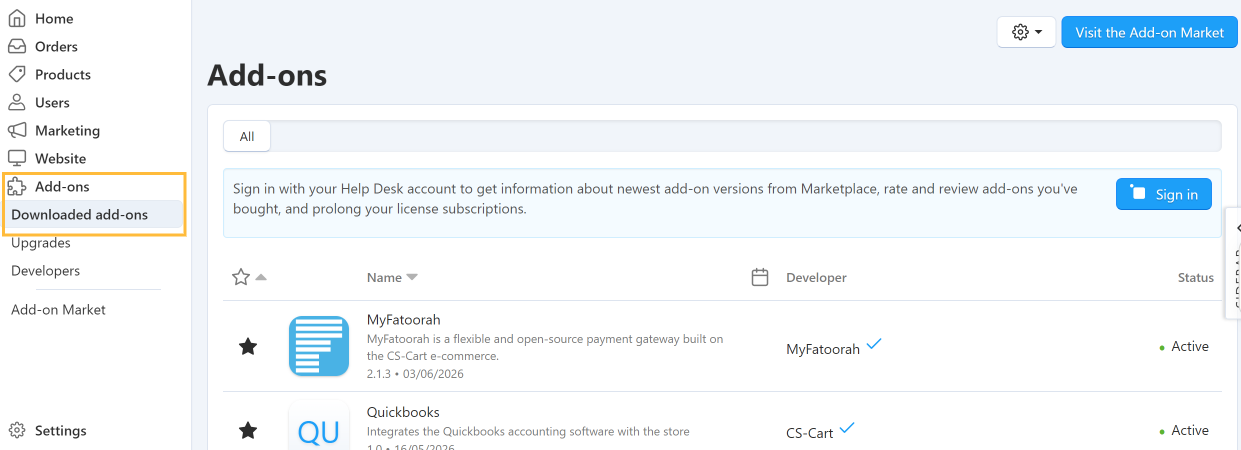
Step 2: Find Vendor panel configurator in the add-ons list (you can use the search box). Make sure its status is ON, then click the add-on name to open its settings.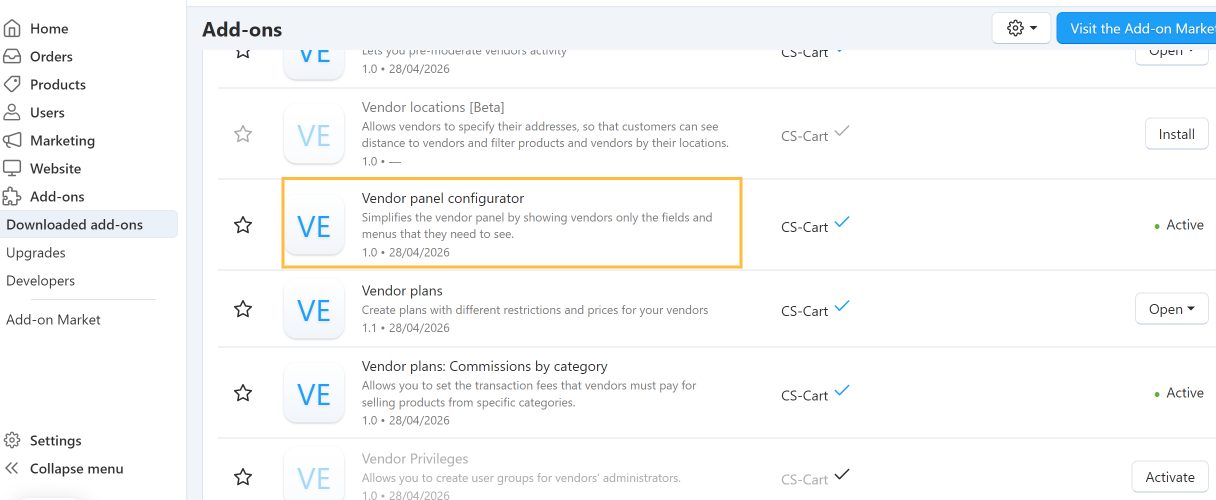
Step 3: Open the Settings tab, then select Product page settings.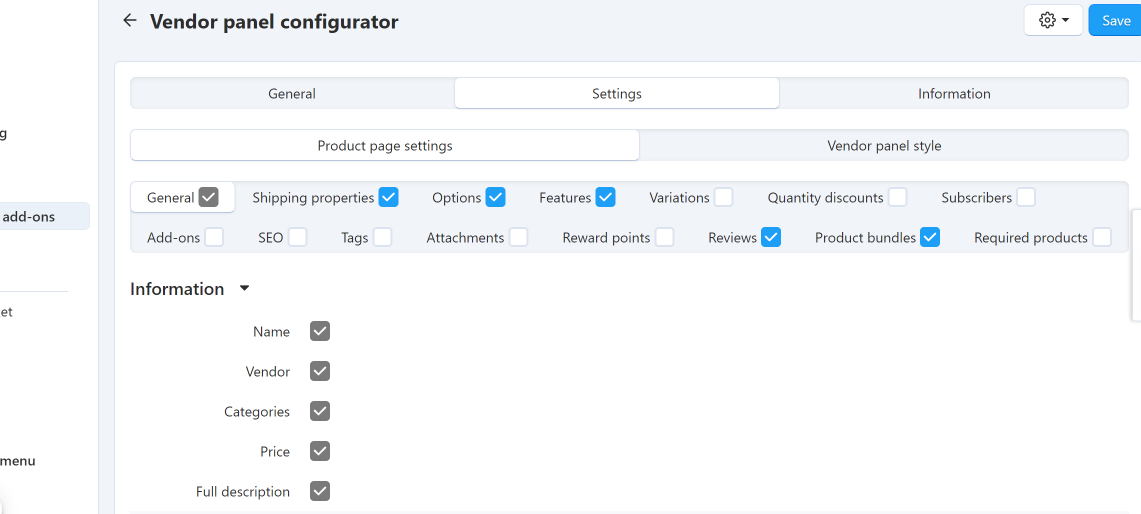
Step 4: Choose the product page tabs that vendors can see, such as General, Shipping properties, Options, Features, Variations, SEO, and others. Tick the checkbox next to each tab you want to show.
Step 5: Click a tab (for example, General) and choose the fields that vendors can see, such as Name, Categories, Price, Full description, Status, and Images. Unchecked fields will be hidden from vendors.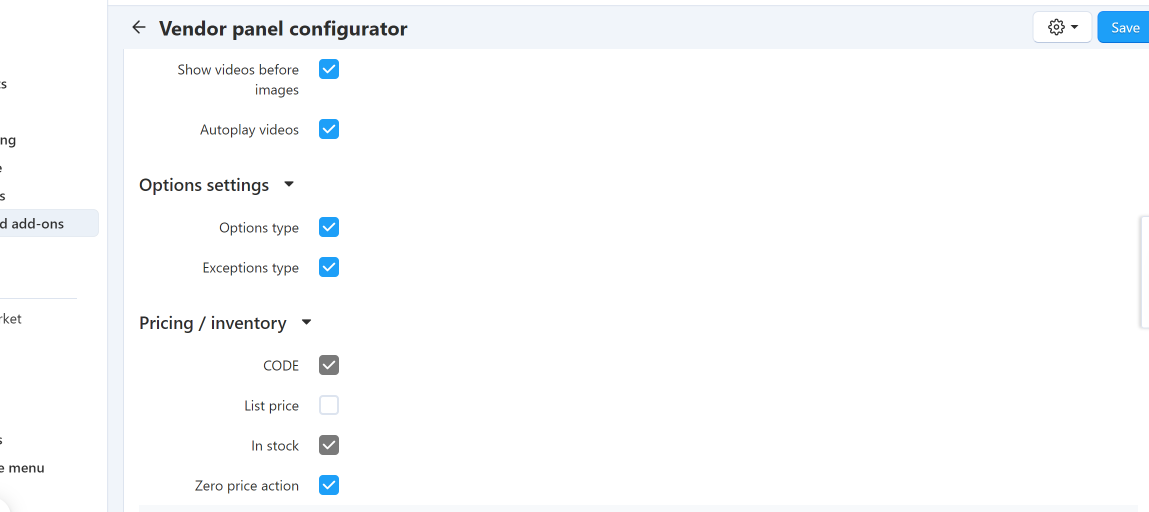
Step 6 (Optional): Open the Vendor panel style tab to customize the appearance of the Vendor Panel.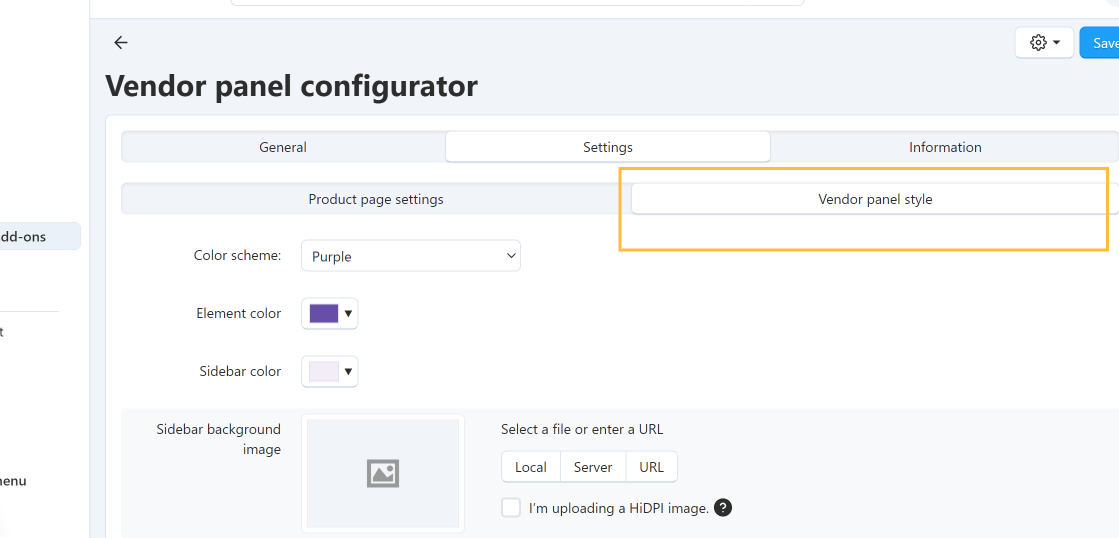
Step 7: Click Save at the top right of the page to apply your changes.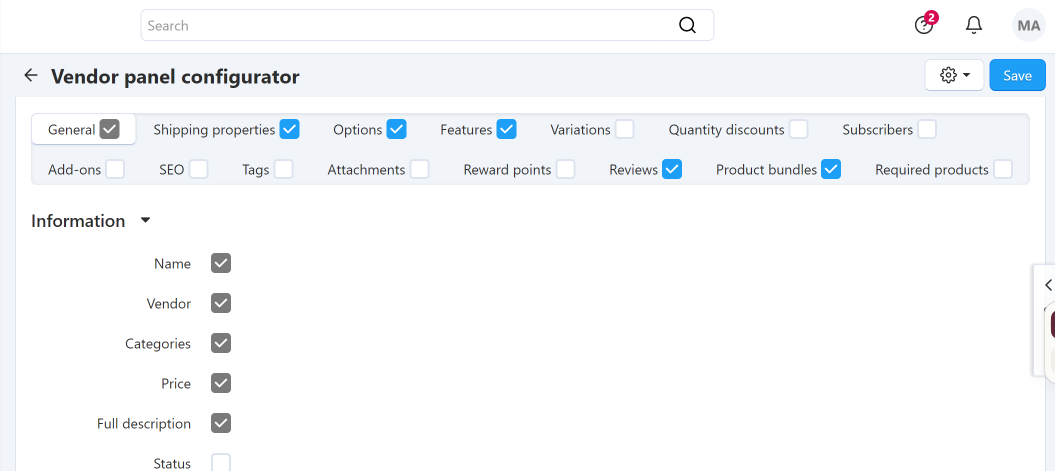
Note: Any tab or field that is not checked will not appear in the Vendor Panel. Make sure essential fields such as Name, Price, and Images remain checked so vendors can add products properly. 3. Manage Vendor Profile & Store InformationOnce your vendor account has been approved, you can log in to the Vendor Panel, view your store summary, and update your basic vendor and store information. Step 1: Open the Bazar Alward Vendor Login page, enter your registered email address and password, then click Sign In to access your Vendor Panel.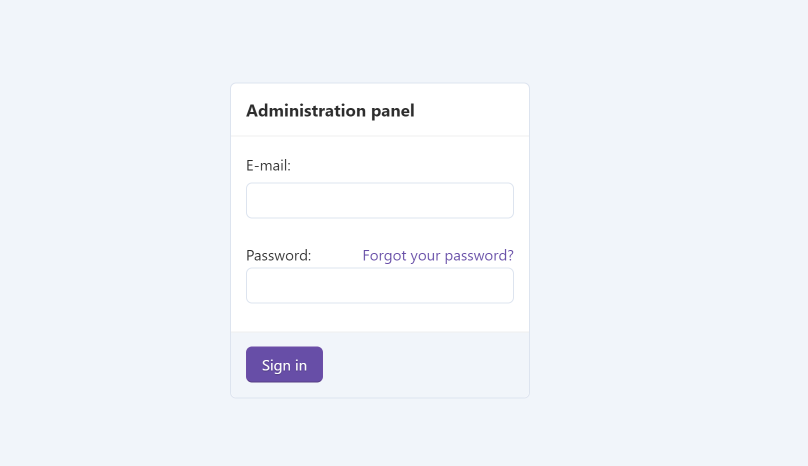
Step 2: After logging in, you will be redirected to the Dashboard, which gives you a quick overview of your store.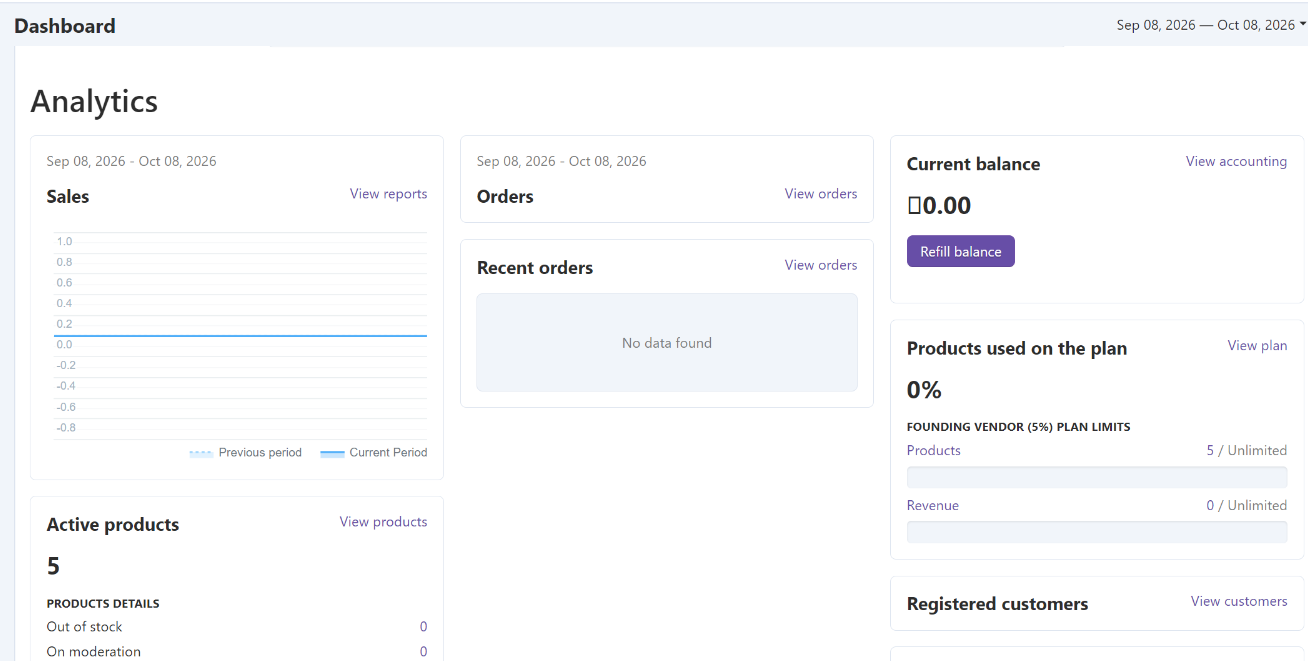
The Dashboard displays the following information:
Each section is explained in detail in the following parts of this guide. Step 3: Open your account/profile settings and review your store information, such as contact information, and other required details, Review your changes and click Save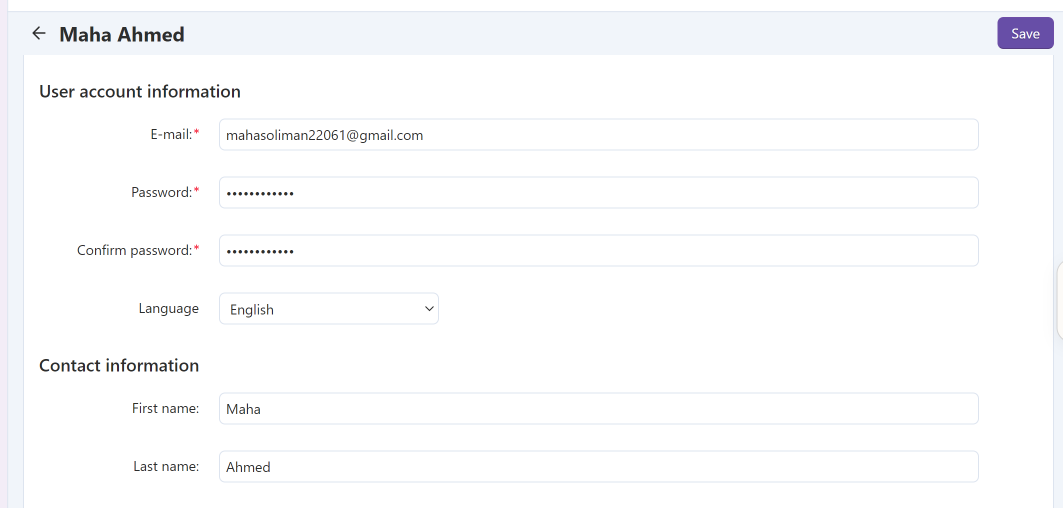
Tip: Keep your vendor and store information accurate and up to date to ensure customers and Bazar Alward can contact you when needed. |


