
Create Product
Collections
|
Adding a ProductLearn how to add new products to your store on Bazar Alward. This guide covers creating products, adding details, descriptions, images, and selecting the right category. 1. Create a New ProductTo add a new product to your store, follow these steps to access the product creation page. Step 1: Log in to your Vendor Panel and navigate to the Products section.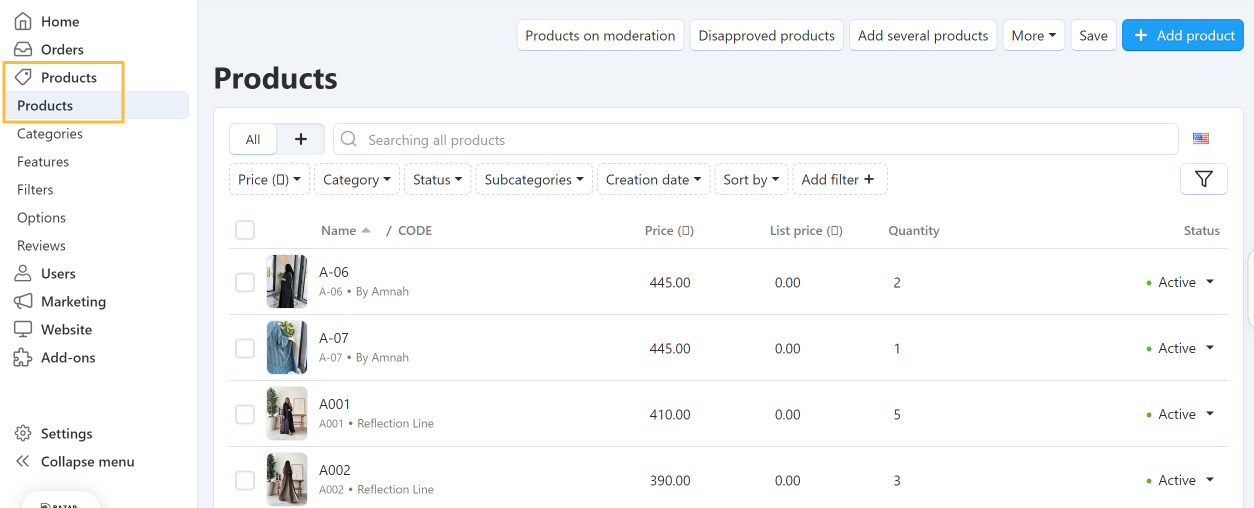
Step 2: Click on the "Add Product" or "+" button to create a new product.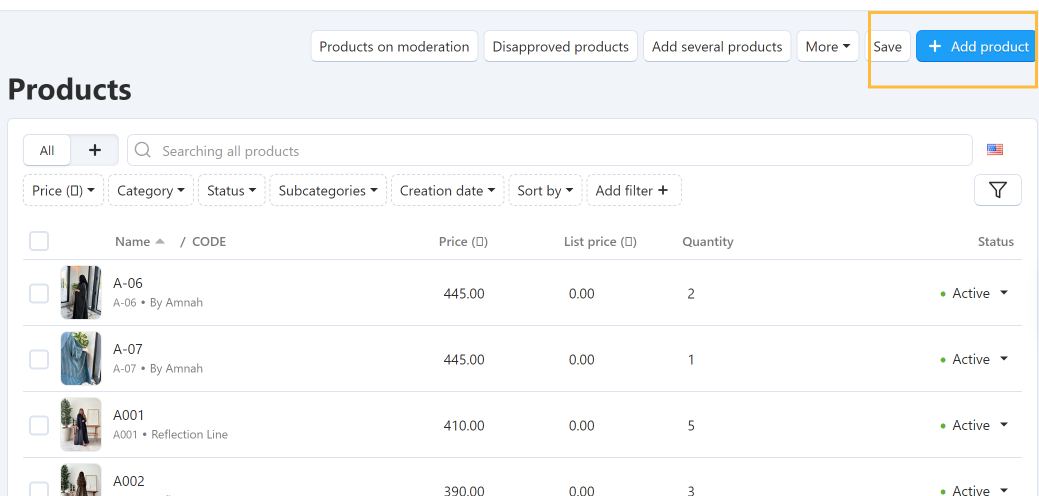
Step 3: The product creation form will open. You will be prompted to enter basic product information.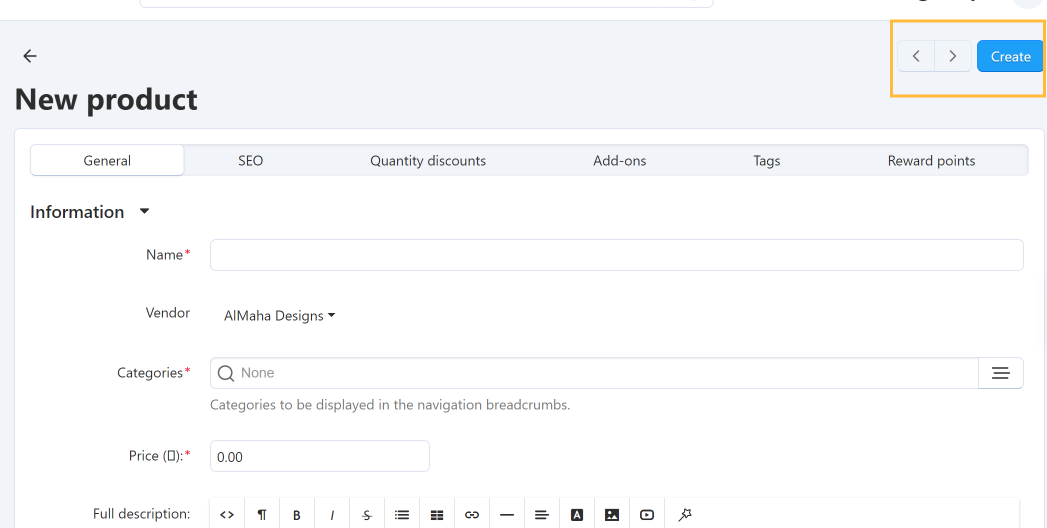
Note: Make sure you have all necessary product information ready before starting, including product name, price, and images. 2. Add Product Details & DescriptionFill in the required product details and write a compelling description for your product. Step 1: Enter the product name in the "Product Name" field. Choose a clear and descriptive name.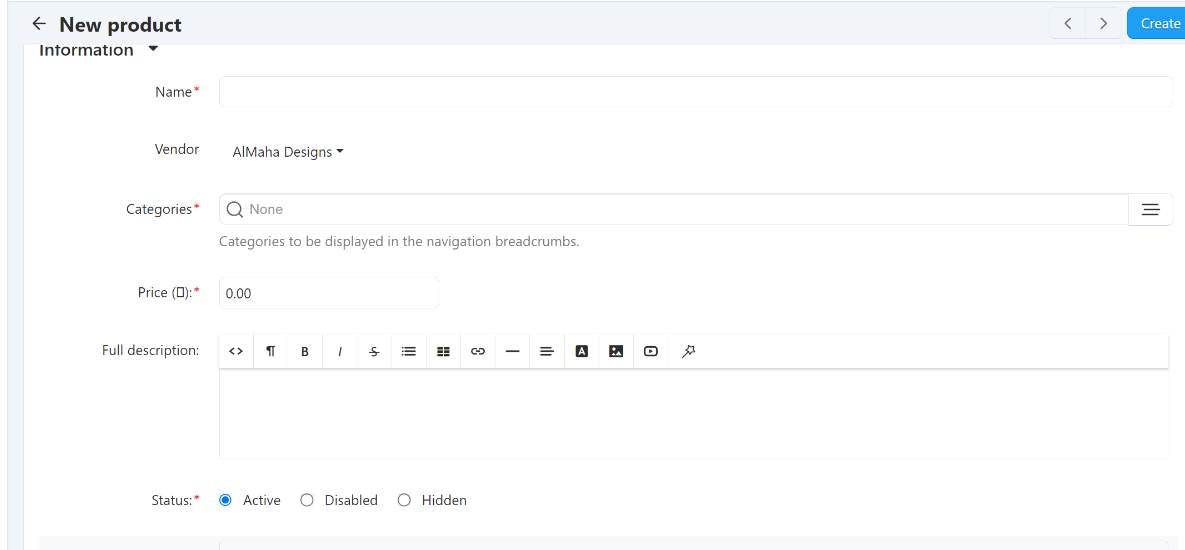
Step 2: Select the appropriate category for your product from the category dropdown menu.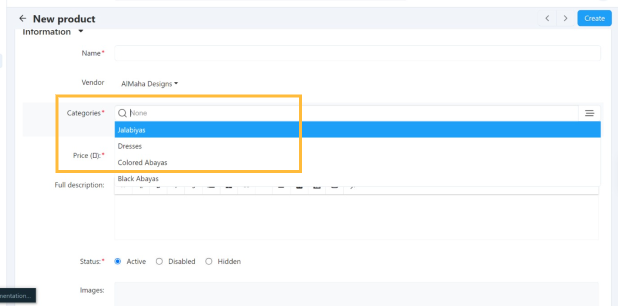
Step 3: Write a detailed product description in the description field. Include key features, specifications, and benefits.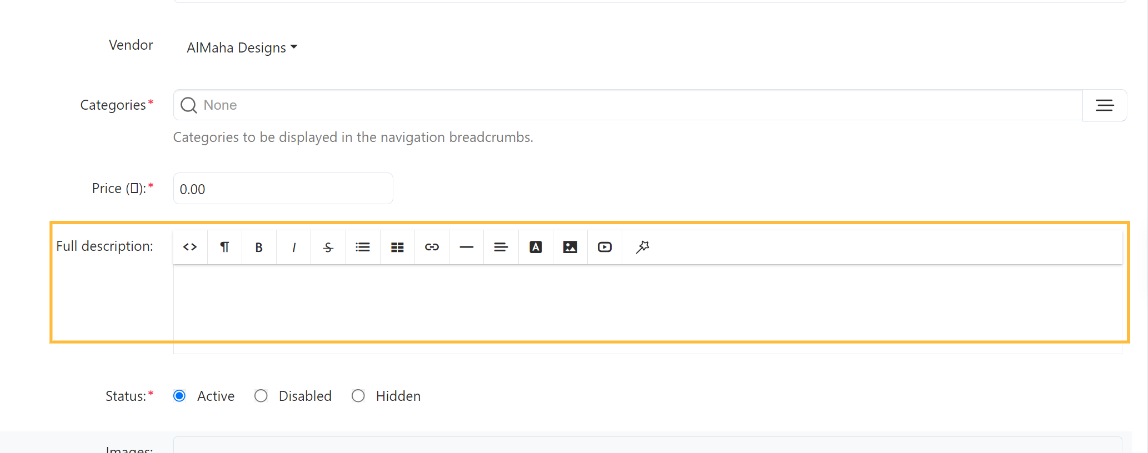
Step 4: Enter the Price (selling price), the List price if available (original price before discount, shown crossed out), and the product Code (SKU), along with any other required details such as weight or dimensions.Example: If the List price is 200 and the Price is 150, customers will see 150 as the selling price, with 200 crossed out. 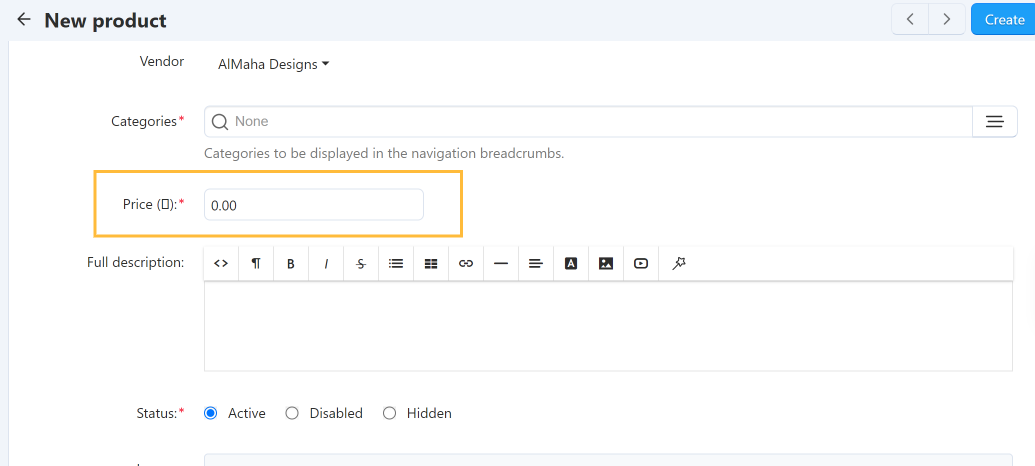 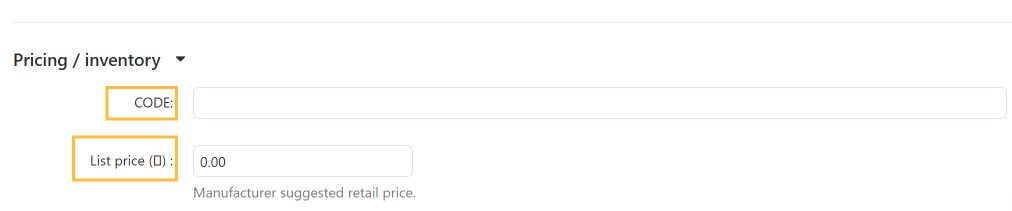
Step 5: Enter the available quantity in the In stock field. This is the number of units you currently have available for sale.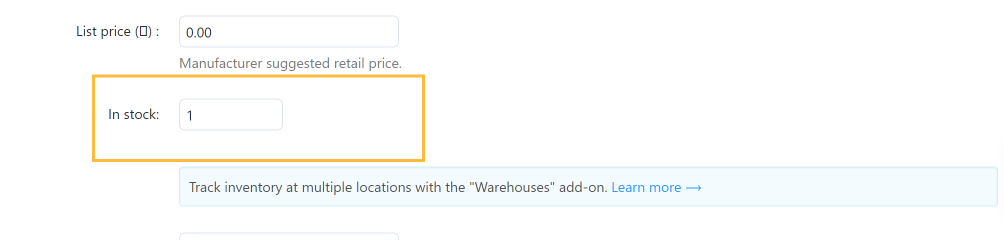
Step 6: Choose the Zero price action, which defines what happens if the product price is 0. Select one of the following options: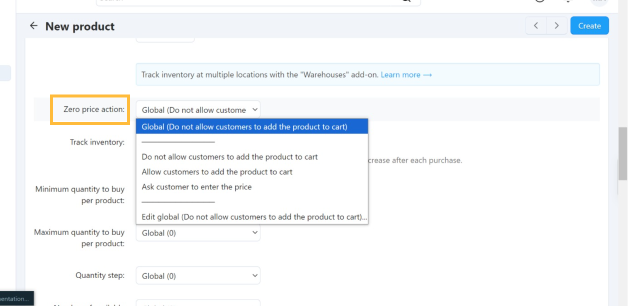
Tip: A well-written product description helps customers understand your product better and can increase sales. 3. Add Product ImagesUpload high-quality images for your product and ensure it's categorized correctly. Step 1: Click on the "Add Images" or "Upload" button to add product images.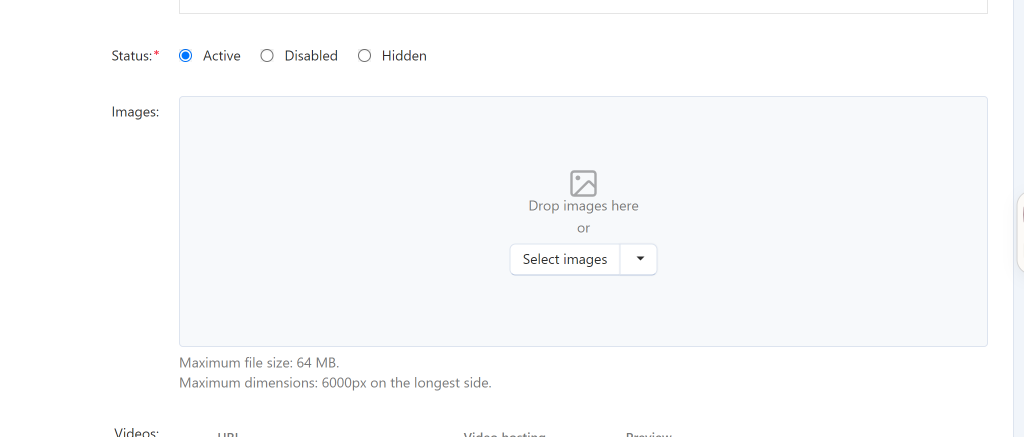
Step 2: Click "Save" or "Create" to publish your product to your store.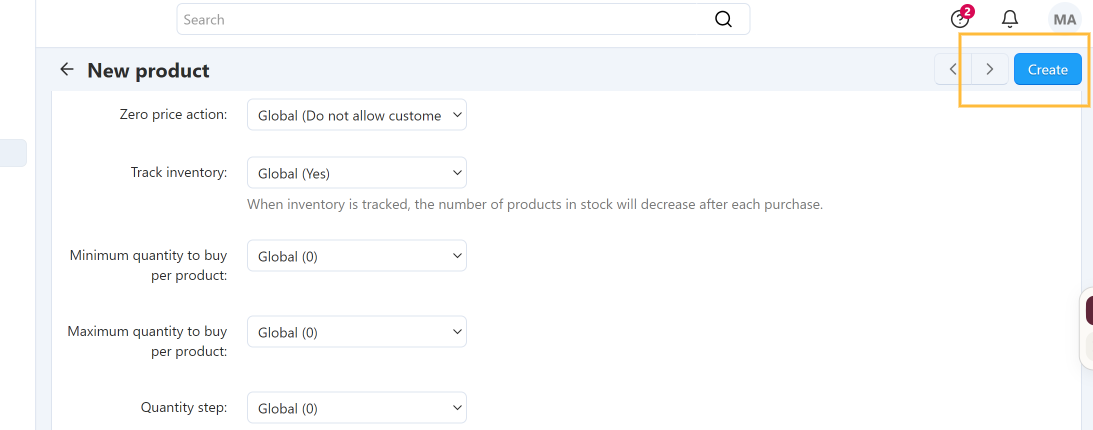
Important: Use high-quality images (recommended size: 800x800px or higher) to showcase your product effectively. Good images can significantly impact customer purchase decisions. |


